
Getting Started for the Performer
Last updated 2026-09-11
As a Performer, your job is to show up, calibrate, and make music. The Organizer handles the session setup — you just need to get connected and checked in. This guide walks through joining a session from start to finish.
Before you begin, make sure you have completed Getting Set Up.
Step 1: Get Your Session Link
The easiest way to join a Lyrekos session is via a link your Organizer sends you — by email, calendar invite, or SMS. Click the link and it opens directly in your browser. You will need to enter the screen name you will use.
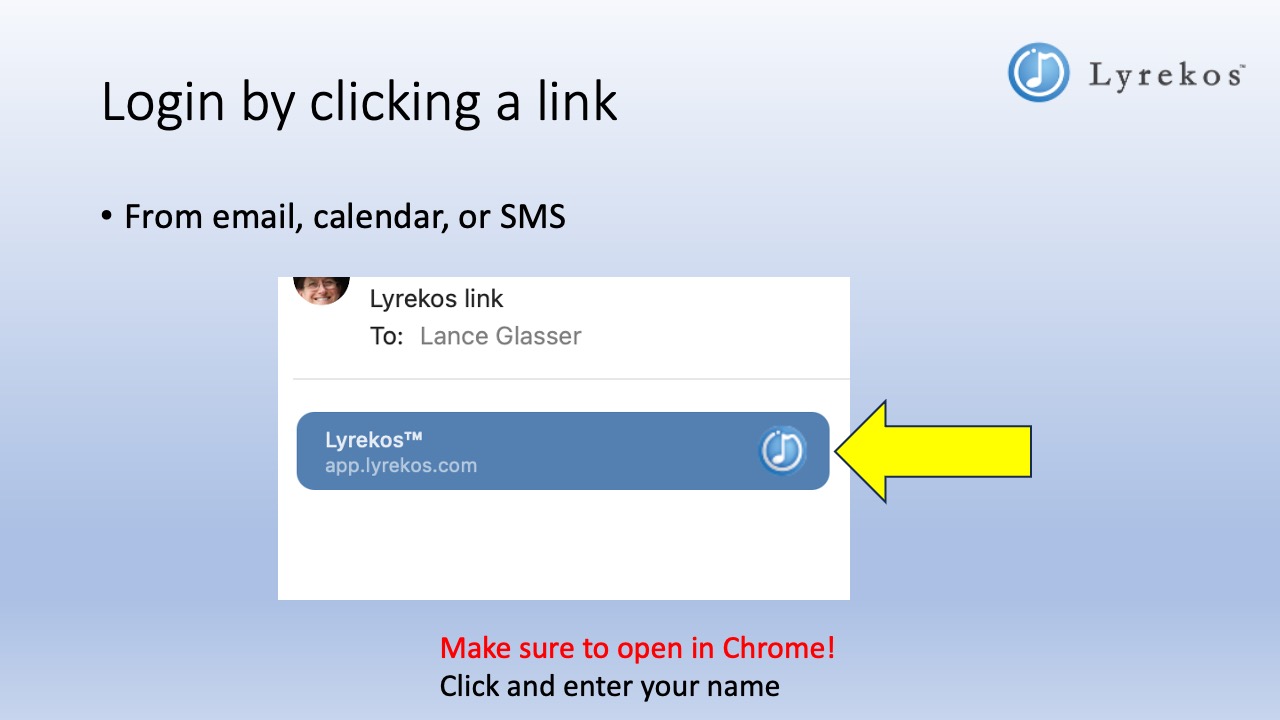
Any device works. Mac, Windows, iPhone, iPad, Android, or ChromeOS, in all major browsers — Chrome, Firefox, Safari, and Edge.
Or go directly to app.Lyrekos.com
If you already know your session name, you can navigate directly to app.Lyrekos.com and log in from there.
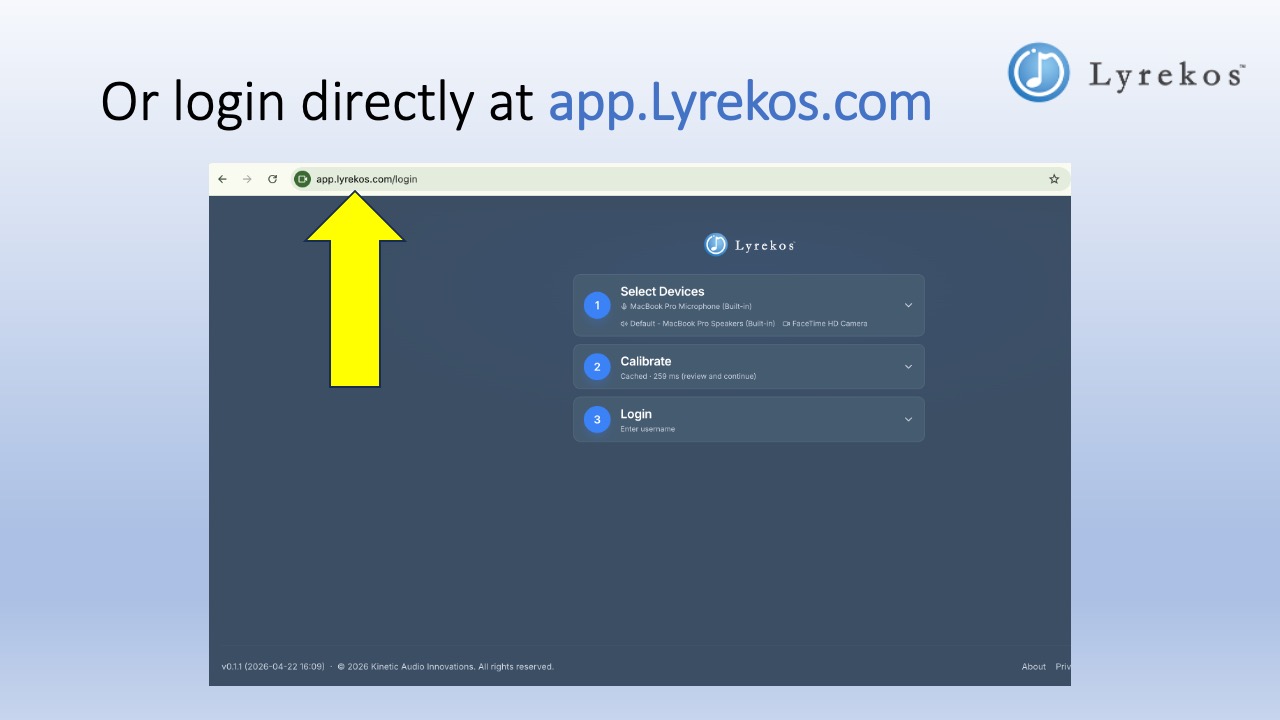
Step 2: Check Your Audio and Video
Before calibrating, expand Select Devices to confirm your microphone, speakers, and camera are correct.
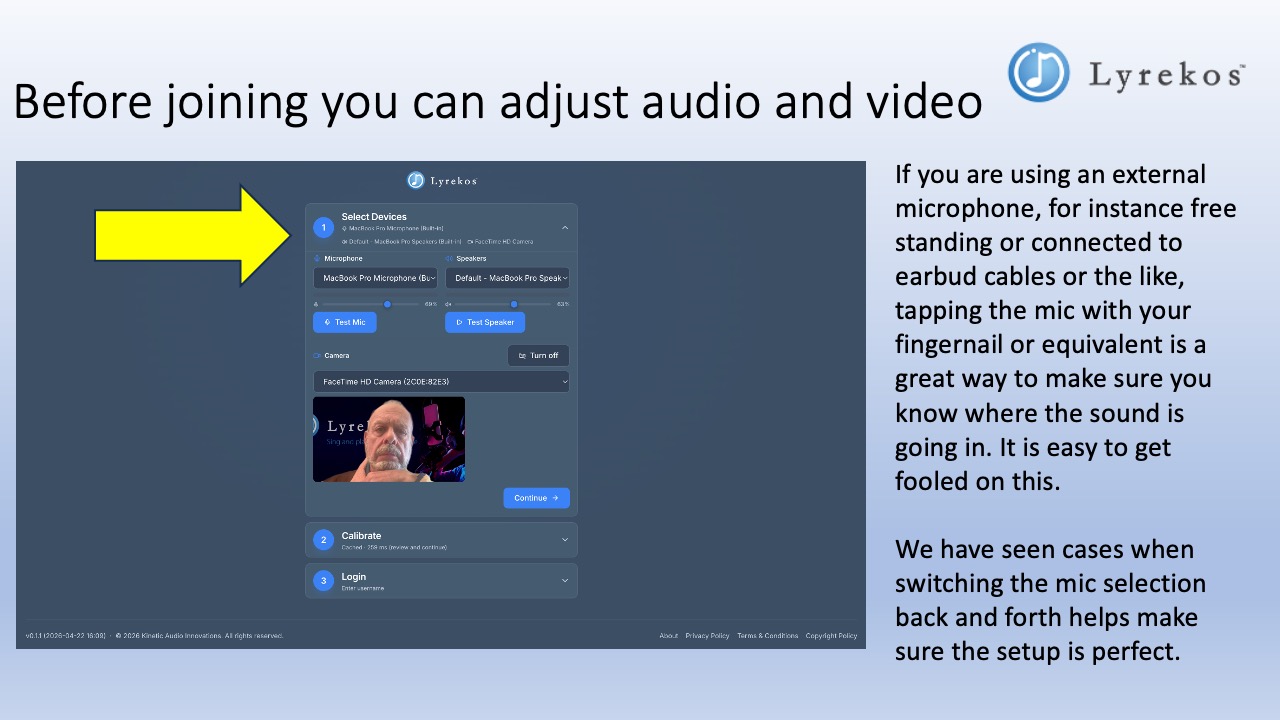
If you are using an external microphone, tap the mic body with your fingernail and watch the level meter — you should see it respond. It is easy to accidentally have the wrong input selected, so this check is worth doing every time.
Step 3: Calibrate
Calibration is step 2 on the login screen. Expand the Calibrate section and click Recalibrate. The process takes a few seconds. Click Continue when done.
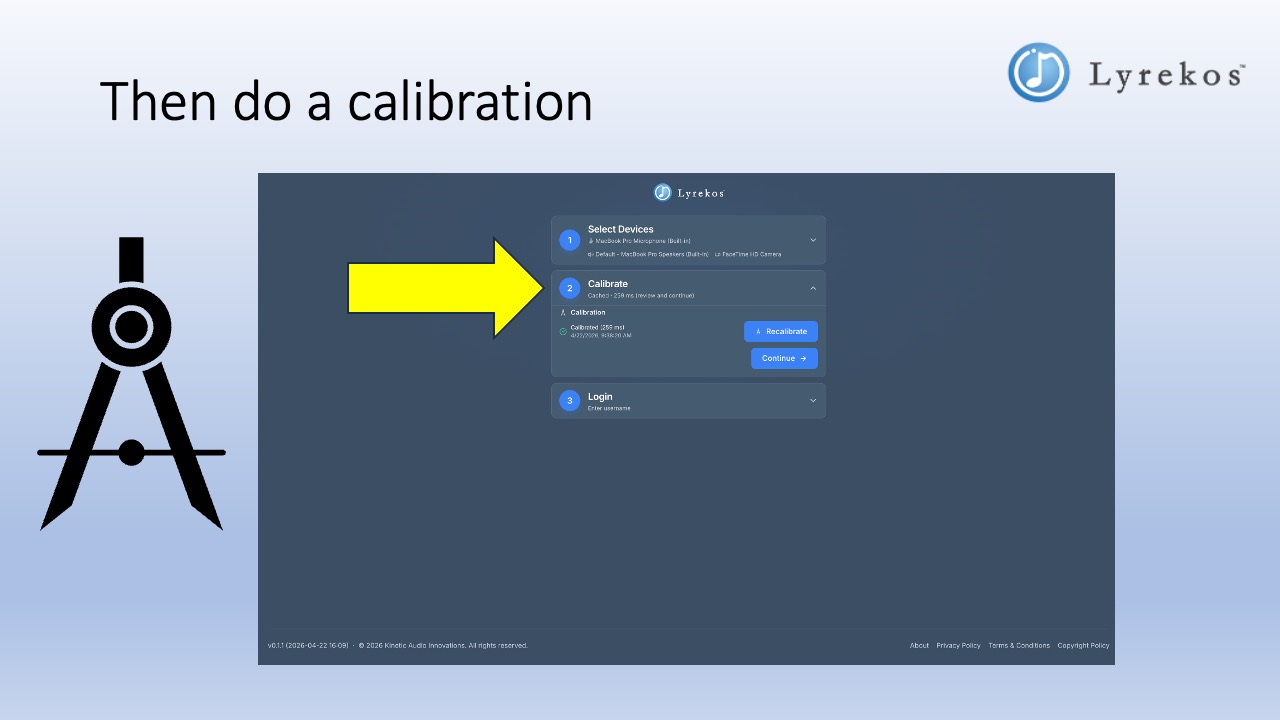
Lyrekos stores your calibration result and reuses it each session. You only need to recalibrate if you switch microphones or speakers. See Calibration for full details and troubleshooting.
Step 4: Log In and Join
Expand the Login step, enter your username, select your session and role, then click Continue. Your Organizer will have told you which role to select — typically Performer.
The Performer Panel
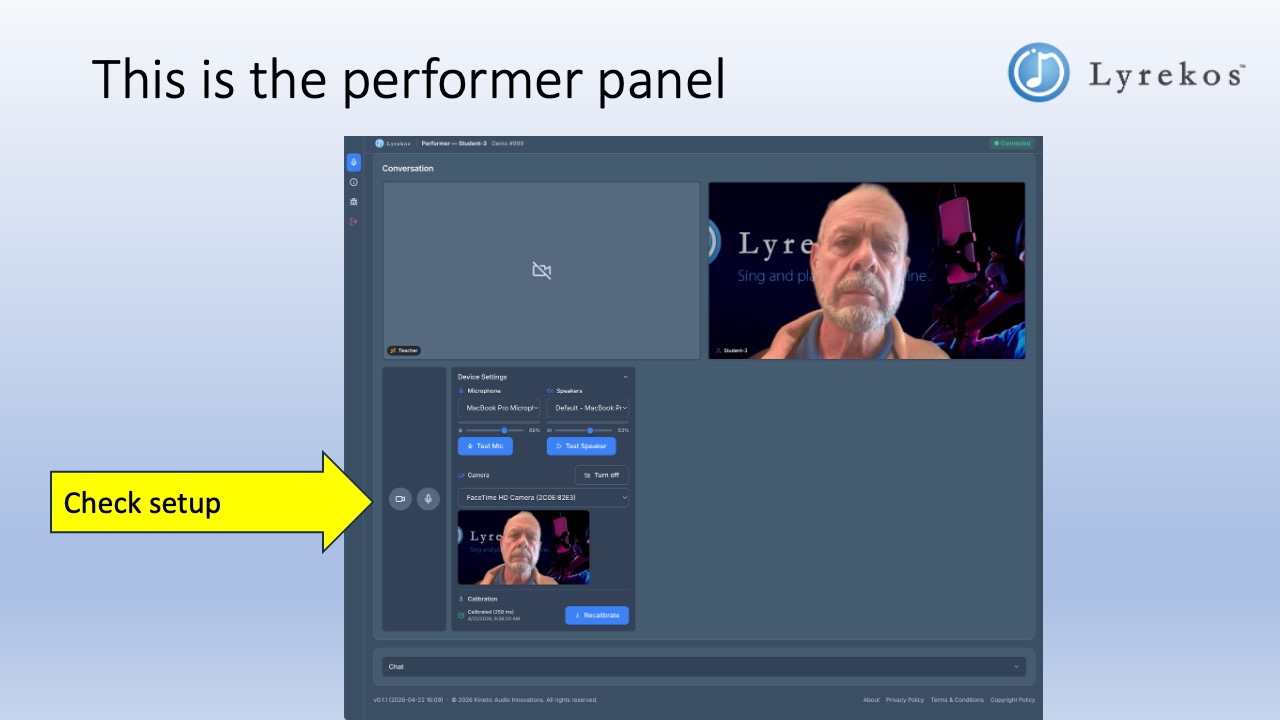
Once you are in, you will see the performer panel. On the right, you can see video of the other participants. On the lower left is the Device Settings panel, where you can adjust your microphone, speakers, and camera, and run a recalibration at any time.
The Side Panel
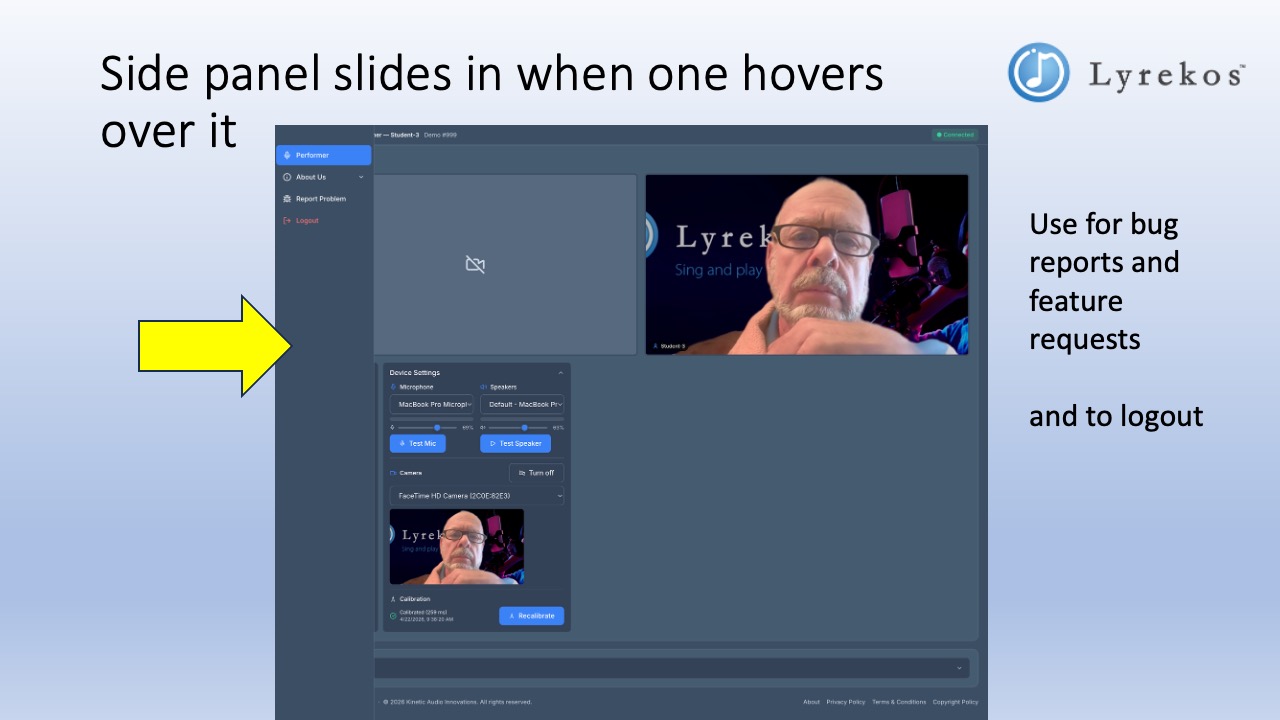
Hover over the left edge of the screen to reveal the side panel. From here you can submit bug reports or feature requests, and log out when the session is over.
Your Role
As a Performer, the Organizer assigns you one of three participant roles:
- Lead Performer — responsible for recording or uploading tracks and sending audio out to all participants. Can be either the Organizer or a Performer.
- Accompanist — hears what comes from the Lead Performer and responds appropriately.
- Listener — listens and talks in Conversation mode.
The Organizer can change your role at any time during the session. You will see the controls on your panel update accordingly. Roles only matter during recording.
Chat
The Chat bar at the bottom of the performer panel lets you send text messages to everyone in the session, or to one specific person. Expand it by clicking on it.
Next Steps
- Calibration — what to do if calibration doesn't work
- FAQ — common questions about devices, audio, and sessions