
Lyrekos lets musicians perform together over the internet. Beyond the standard video conference, chat, and device selection, it automatically synchronizes music performance in real time across the internet. This guide walks you through your first session — from sign-up through three worked examples.
Welcome
By signing up for a complimentary account you become an Organizer and can invite up to 12 Performers to your session, plus up to 4 Audience members to observe. You can upload audio files of many formats — including multi-track — to be played or used as backing tracks. Demonstrations can be recorded and stored in the session Library. The results of your performances can also be stored there, and a mix console lets you adjust each participant’s gain during a performance and rebalance the tracks during playback.
A key to synchronizing music over the internet is a per-device calibration process — there are no limitations regarding Wi-Fi or Bluetooth devices. Calibration locks an Ensemble in time even when the players are scattered across the world. Every session is heard live as it happens and is recorded so you can listen back.
Lyrekos works in any modern browser — Chrome, Firefox, Safari, and Edge are all supported — on Windows, macOS, iOS, iPadOS, Android, ChromeOS, and Linux. Access Lyrekos from your browser at app.lyrekos.com.
About this guide
This Quick Start guide focuses on the Organizer’s view of Lyrekos, since the Organizer manages the session. Invited Performers and Audience members participate in a conventional video conference — their only setup is selecting their devices and calibrating, as described below.
The Organizer page
The Organizer page is shown below. Video conference screens on top, function tiles are on the right, the Ensemble panel sits in the center, and a summary of any Audience members appears at the bottom left.
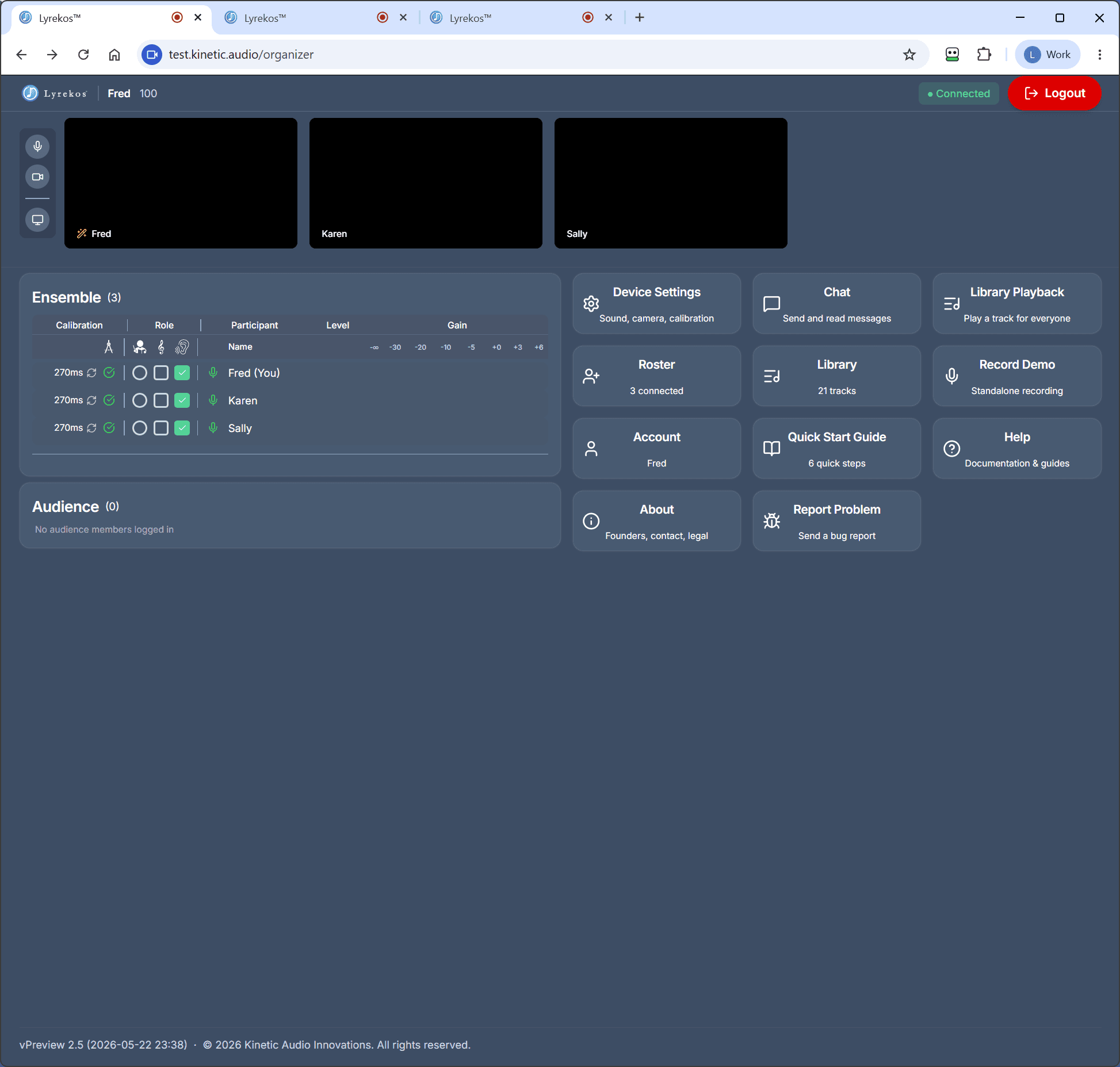
In the examples that follow, Fred is the Organizer; Karen and Sally are Performers.
Getting Started
Sign up
Go to app.lyrekos.com and provide your email address — it becomes both your user ID and the name of your session. After verifying your email, you can log in and start using Lyrekos immediately.
Roster
As the Organizer, invite Performers and Audience members to your session by entering their email addresses. Each invitee receives a verification email, and once they respond they can log into your session. The roster persists until you modify it or remove an invitee.
Device settings
When you or any Performer logs in — and at any point during a session — confirm that the appropriate microphone, speaker, and camera are selected. Headphones or earbuds are recommended for Accompanists. Audience members only need to select the speaker.
Calibration
The Organizer and any Performers who will participate in an Ensemble performance must be calibrated so their audio can be synchronized. Calibration is unique to a specific mic + speaker combination; if a previous calibration is found, it’s applied automatically.
To calibrate (or recalibrate), the user places the mic and speaker close together, listens to the introduction, and stays quiet while the calibration tones play. The process takes less than a minute. If the test can’t lock in — background noise, mic not selected, volumes set too low — the Roster shows a red mark instead of a green check. Check the device settings and try again.
Anyone can initiate calibration from their own Device Settings, or the Organizer can trigger it from the Ensemble panel.
The Library
Each Organizer has a Library to hold backing tracks, demo recordings, and recordings of Ensemble performances. Audio files of many formats, including multi-track, can be uploaded and downloaded.
Use the Record Demo tile on the Organizer page to capture a standalone solo recording by the Organizer (no Ensemble required) and save it to the Library as a backing track.
Conducting the Ensemble
This is the core of the Lyrekos experience. Initially, all participants appear as Listeners, conversing freely in a video conference while the Organizer configures the Ensemble. Each participant has one of three roles at any time: a Listener simply hears the performance; an Accompanist plays along with a Library backing track or with a Lead Performer; the Lead Performer is the featured performer that Accompanists follow. Audience members hear the final mix live, in real time. Performers not tagged as Lead Performer or Accompanist are auto-muted during a take so the recording stays clean — they still hear everything that’s happening.
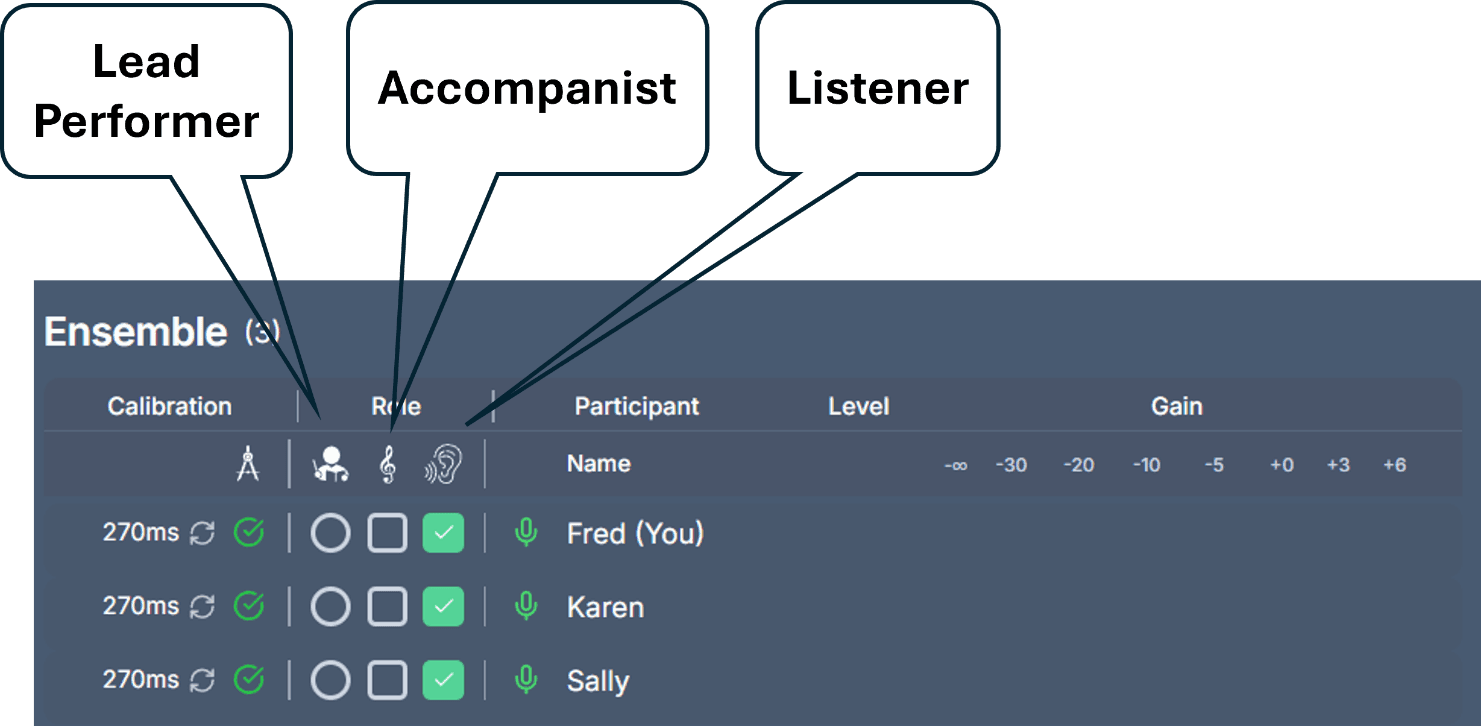
Starting and stopping a take
The Organizer chooses what leads the Ensemble — either a backing track from the Library (selectable from the dropdown above the Ensemble panel) or a Lead Performer — then tags Accompanists in the Ensemble grid and hits Start. The Now Playing bar shows progress; hit Stop when the piece ends.
Example 1 — Library backing track
Fred (now a teacher) wants to challenge the two students to play along with a recording from the Library. Since everyone is already calibrated (green check mark under Calibration), Fred tags Karen and Sally as Accompanists and selects a track from the Library. Fred can adjust the default gain settings on the mix console as desired.
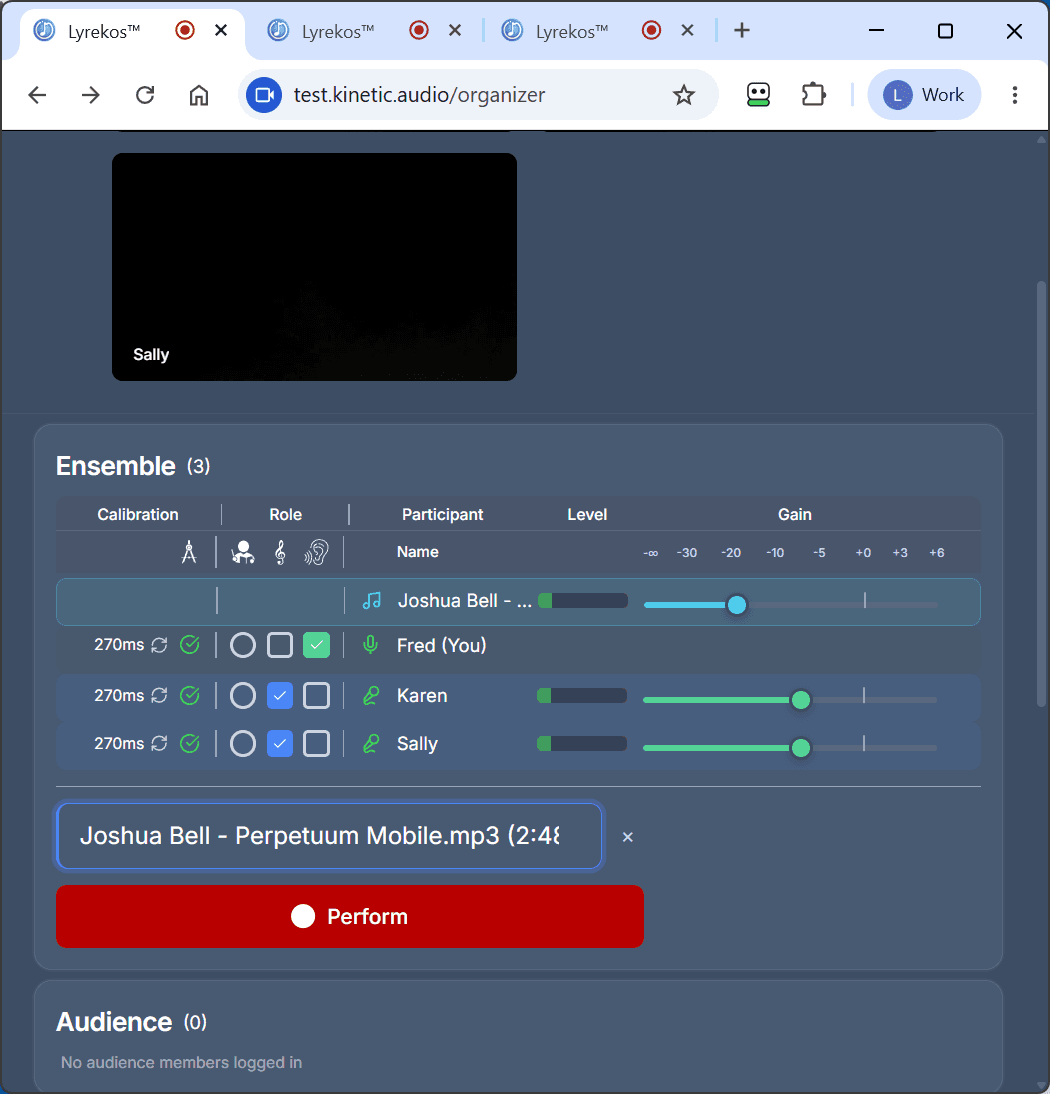
Since Fred is a Listener in this example, he hears the final mix in real time; the two Accompanists hear only the Library track while performing. When the performance ends, the Organizer can immediately play back the multi-track recording for everyone to hear, pausing to comment on sections and rebalancing the mix to spotlight each Accompanist.
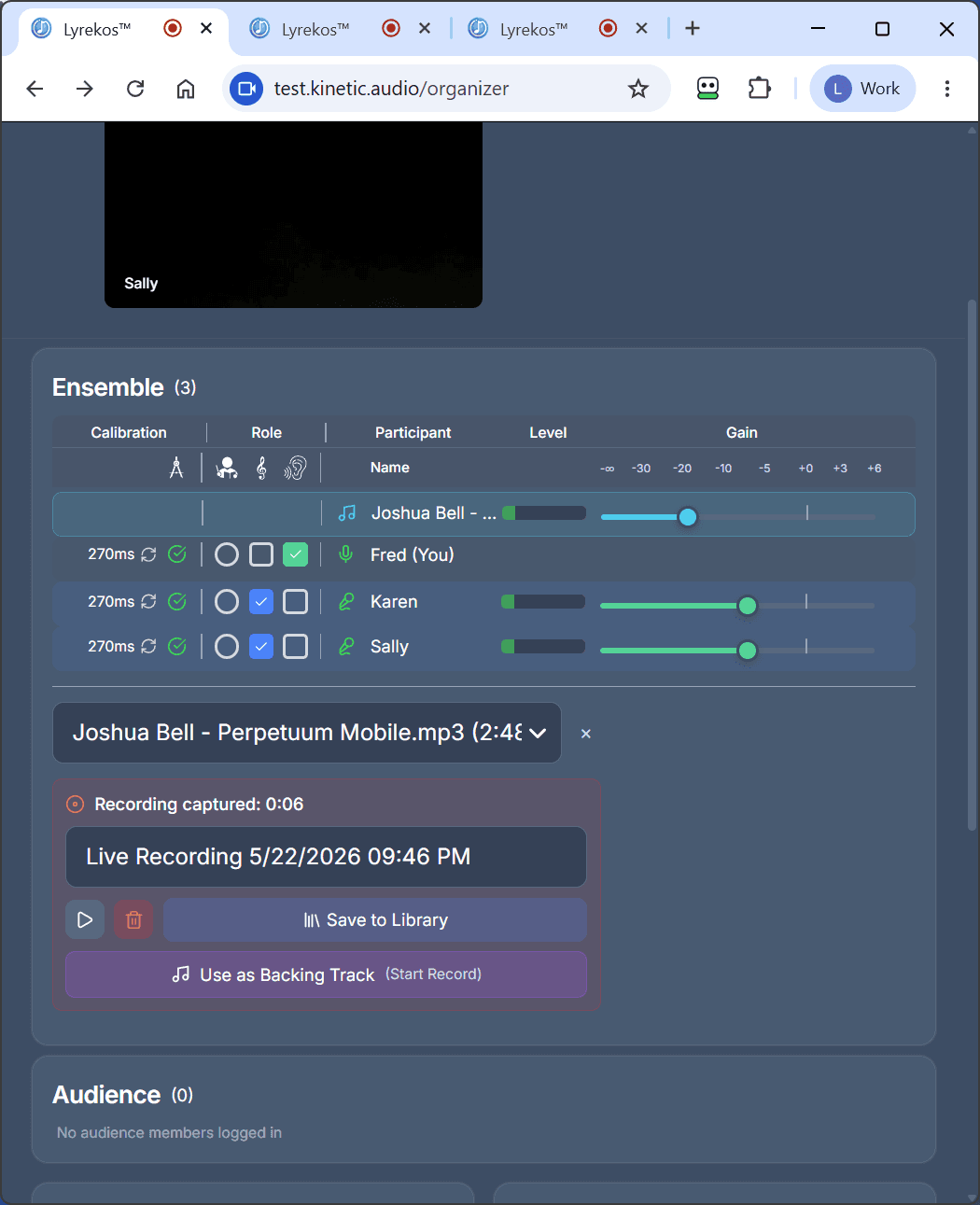
The performance can be saved to the Library (and renamed) or deleted.
Example 2 — Lead Performer with Accompanist
Rather than use a Library track, Karen is selected as the Lead Performer with Sally as the Accompanist. Karen performs hearing only herself, while Sally performs hearing Karen. Fred listens to the mix in real time.
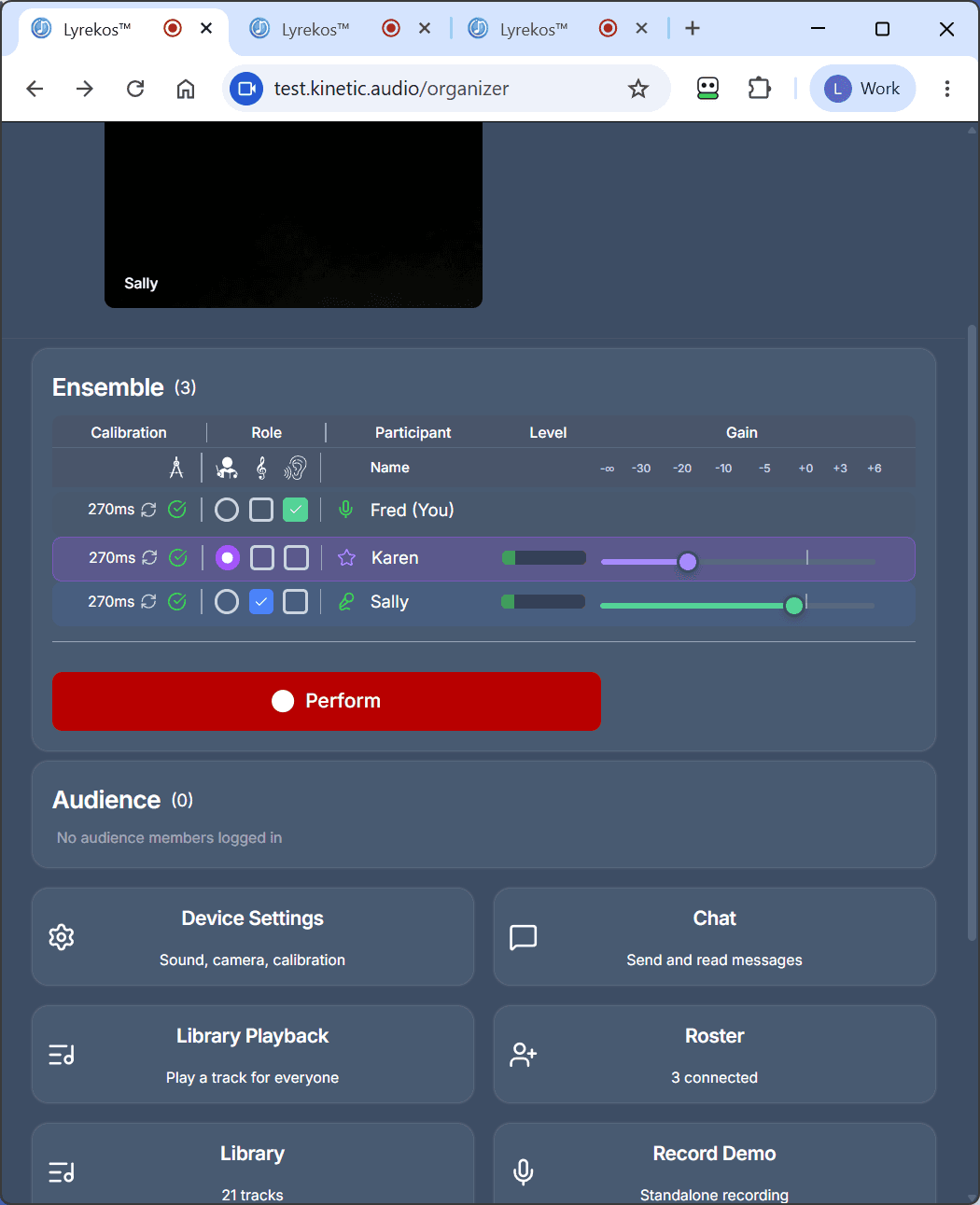
When finished, the recording of the performance can be played back as in Example 1. Tap the purple Use as a Backing Track button and the recording becomes available for an immediate follow-on performance.
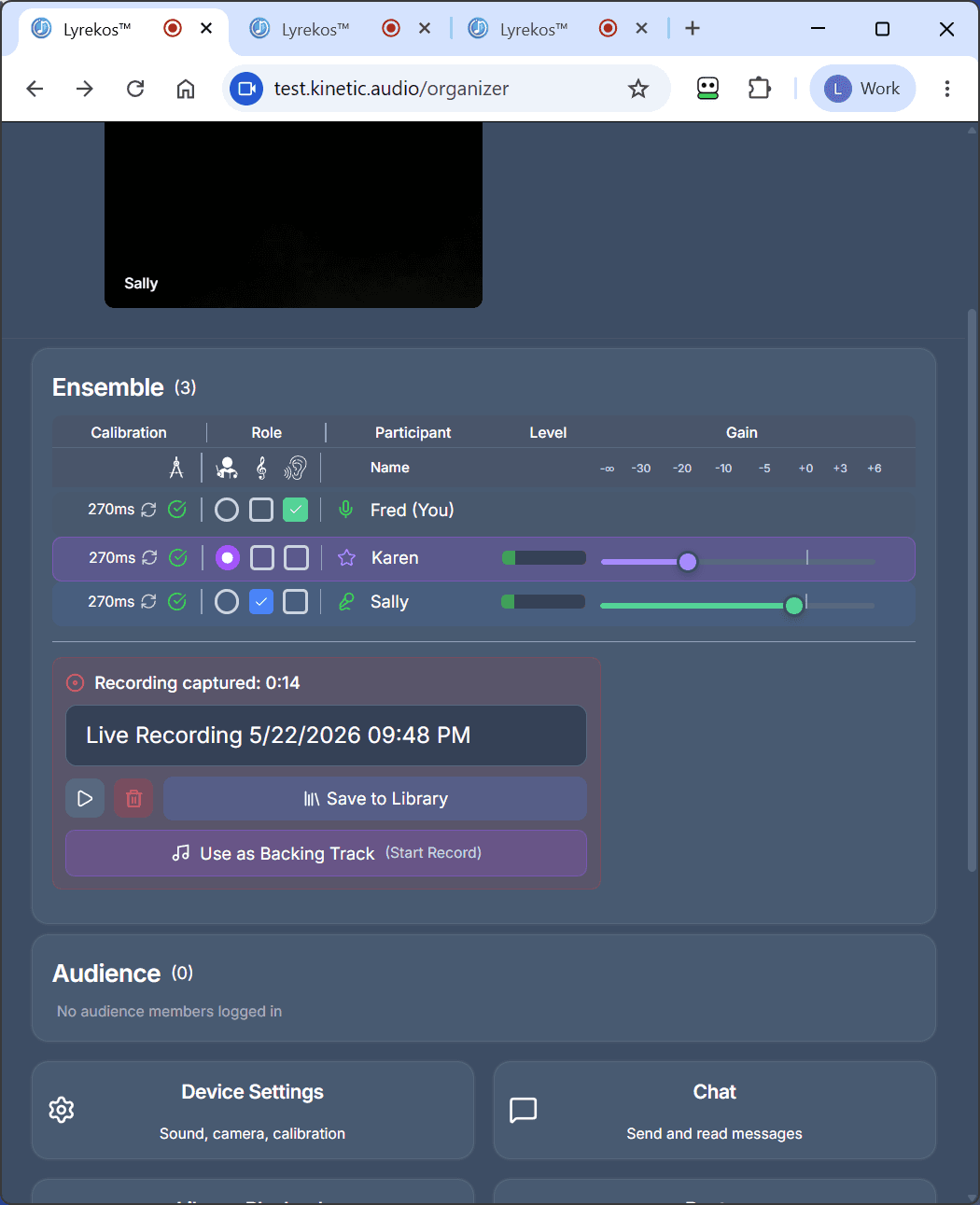
Example 3 — Cascading recordings
The recording we just made is now the track Fred will perform against. We chose the “Mix” track from the recording (which contains both Karen as Lead Performer and Sally as Accompanist) — we could have picked either of their individual tracks, or built a custom mix.
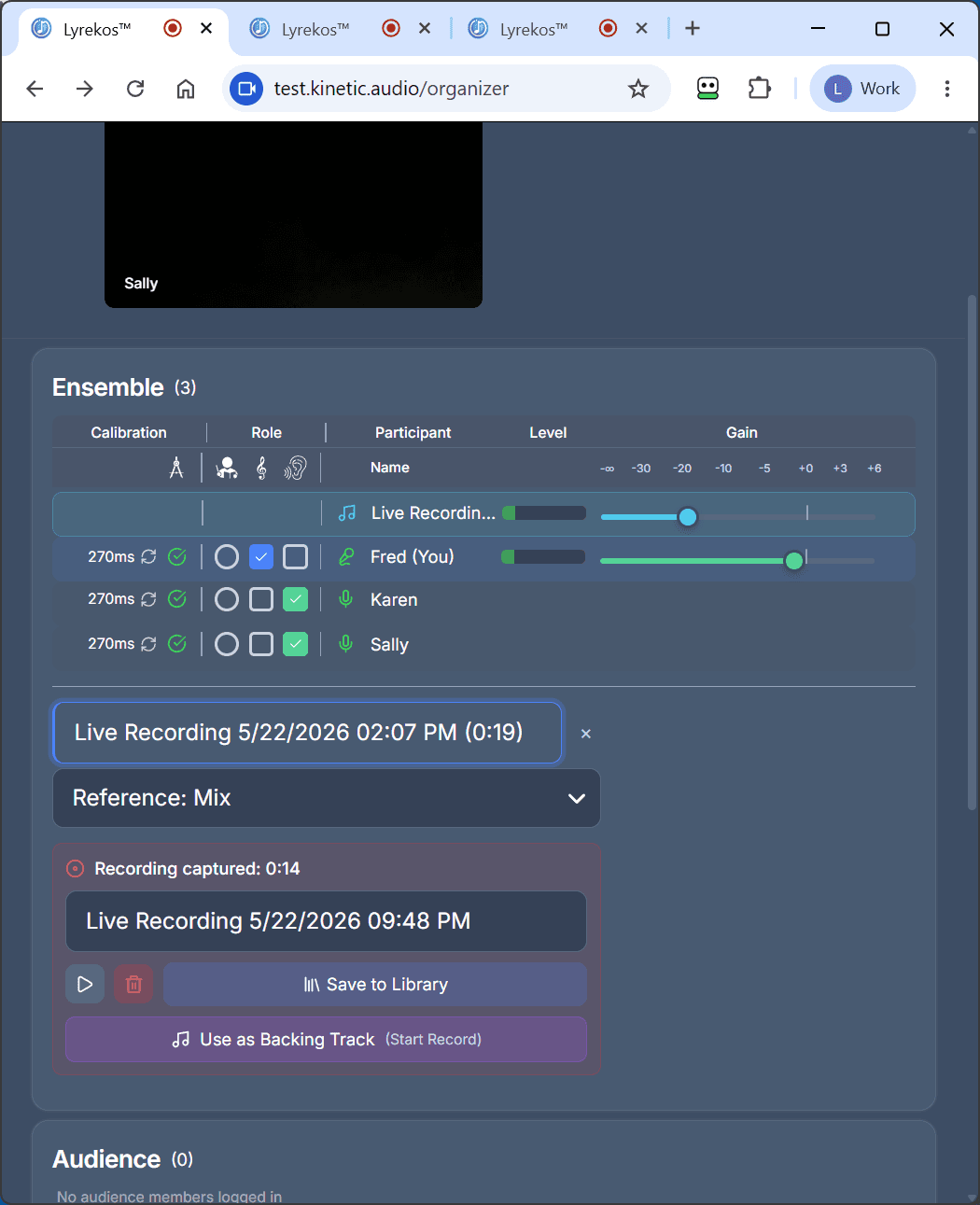
Use as Backing Track lets you cascade performances, each building on the performances of the others.
For Performers and Audience
Performer’s view
Once a Performer logs in, they land directly in the session. Their job is to confirm their devices, complete calibration if needed, participate in the video conference, and wait for the Organizer to start a take. During the take, the live performance plays through their headphones in sync; if they aren’t tagged as Lead Performer or Accompanist on that take, their mic is auto-muted but they still hear everything.
Audience view
Audience members just listen. No microphone, no calibration, no setup beyond selecting the speaker. They hear the synchronized live performance as it happens.
Feedback and Support
In return for using this complimentary preview edition of Lyrekos, we ask that you provide feedback and — if any errors arise — submit a problem report using the Report Problem tile. Reports should be submitted immediately after observing any issue, no matter how small, so we can capture internal system information to help diagnose and resolve it. Please include as much detail as you can about what happened and what you observed so we can replicate the issue.
Problem reports can also be used to send feedback, suggestions, or other comments. You can also email us at support [at] kinetic.audio. Your comments are most welcome.
If you’d like to go deeper, our Help Center has step-by-step articles on getting set up, calibration, and the different operating modes. For background on how Lyrekos synchronizes music across the internet, see why Zoom fails for music.
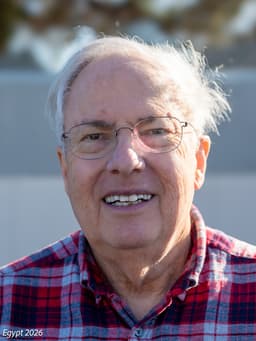
Lloyd Dickman
Lloyd is CTO and Co-Founder of Kinetic Audio Innovations. He was previously CTO of InfiniBand Products at QLogic, Senior Director at Amdahl, and a founder of the ASPLOS conference. ACM Senior Member with 6 US patents.
Try Lyrekos for Yourself
Join our community and be among the first to perform together in perfect sync, anywhere.
Join our CommunityTry it