Getting Set Up
Last updated 2026-09-11
Getting set up for Lyrekos is straightforward — if you can run Zoom, you can almost certainly run Lyrekos. Here is everything you need to know before your first session.
The Quick Checklist
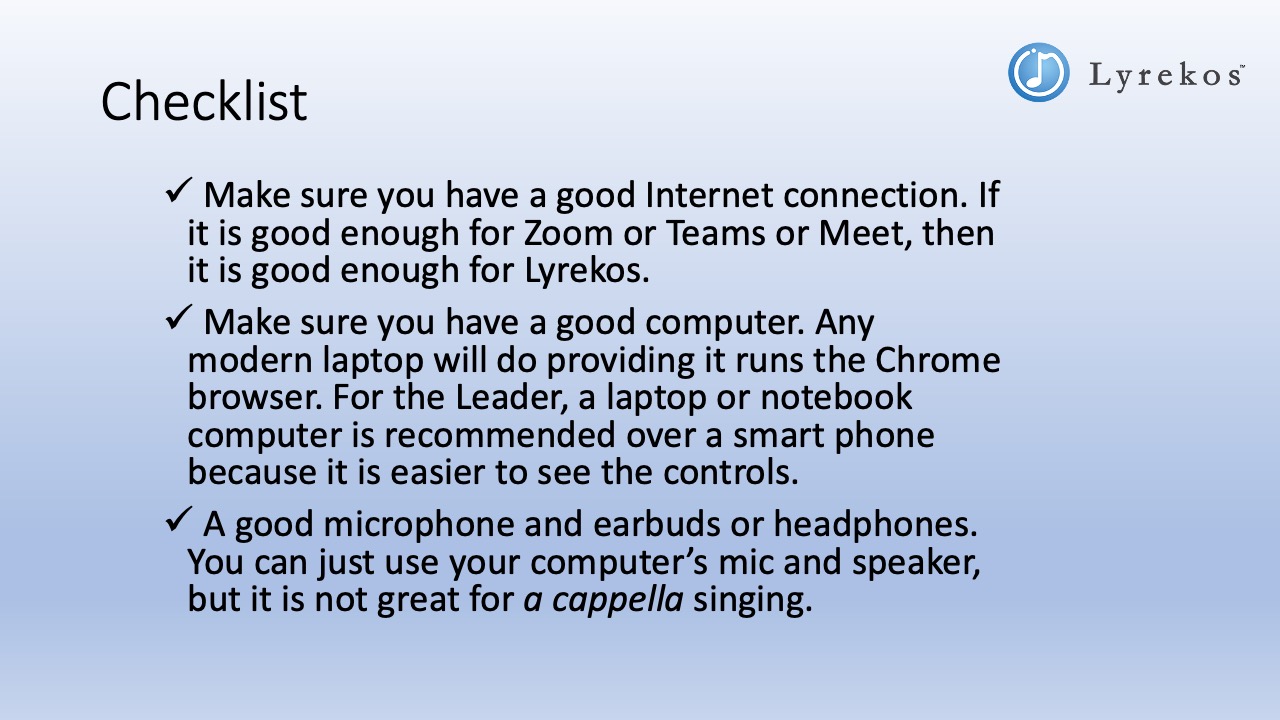
Three things to have ready:
- A good Internet connection — if it works for Zoom, Teams, or Meet, it works for Lyrekos.
- A device running a modern web browser — Chrome, Firefox, Safari, or Edge all work, on a laptop, desktop, phone, or tablet.
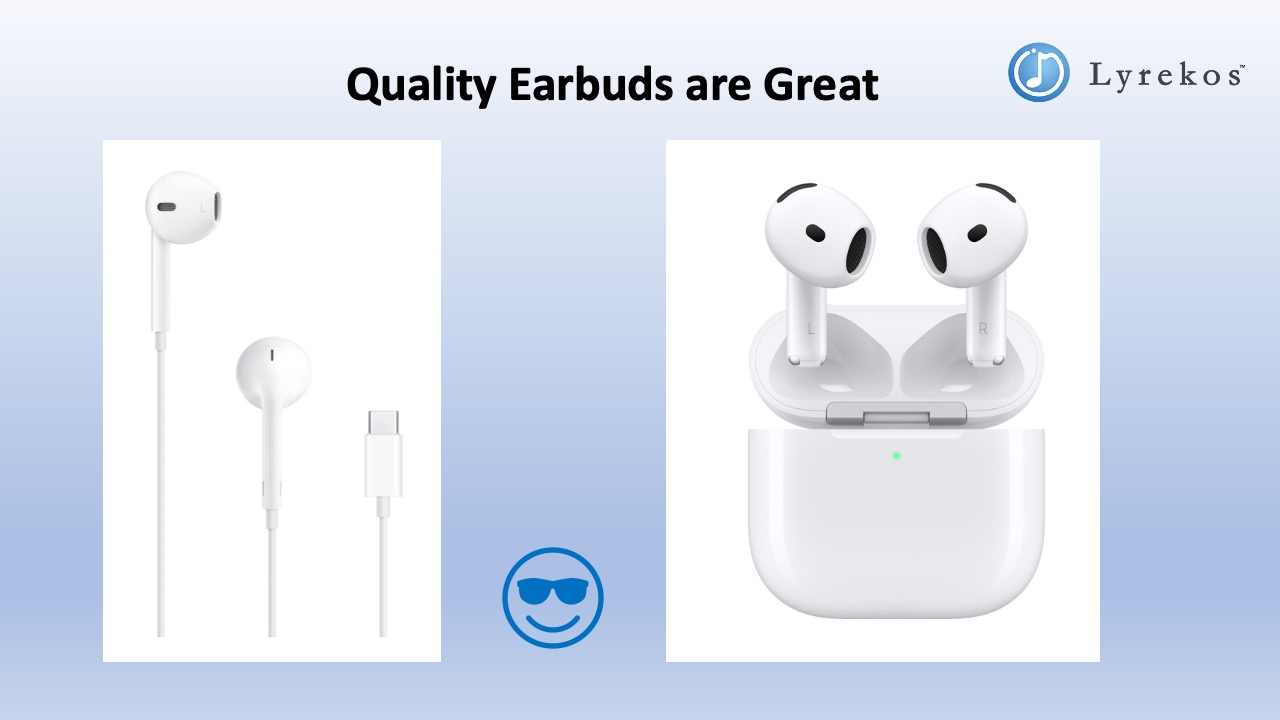
- Earbuds or headphones — strongly recommended, especially for singing.
That's it. No software to download, no special audio interface, no account to create before your first session.
Internet Connection
Any broadband connection that supports video conferencing is sufficient. Lyrekos works over both Wi-Fi and Bluetooth — no hardwired ethernet connection is required.
Computer and Browser
Lyrekos works in any modern web browser — Chrome, Firefox, Safari, and Edge are all supported.
Supported operating systems
macOS, Windows, iOS, iPadOS, ChromeOS, Android, and Linux are all supported.
Organizers: We recommend a laptop or notebook computer rather than a smartphone. The Organizer interface has more controls on screen, and they are easier to manage on a larger display. Performers and Audience members can use any screen size.
iPhone and iPad
Supported. Open the session link in the browser — there is nothing to install.
Audio Setup
Earbuds or headphones (recommended)
The main reason to use earbuds or headphones is feedback prevention: if your speakers are on while you sing or play, the sound leaks back into your microphone. This matters most for a cappella singing. For most other scenarios you can get by with your laptop's built-in speaker and mic.
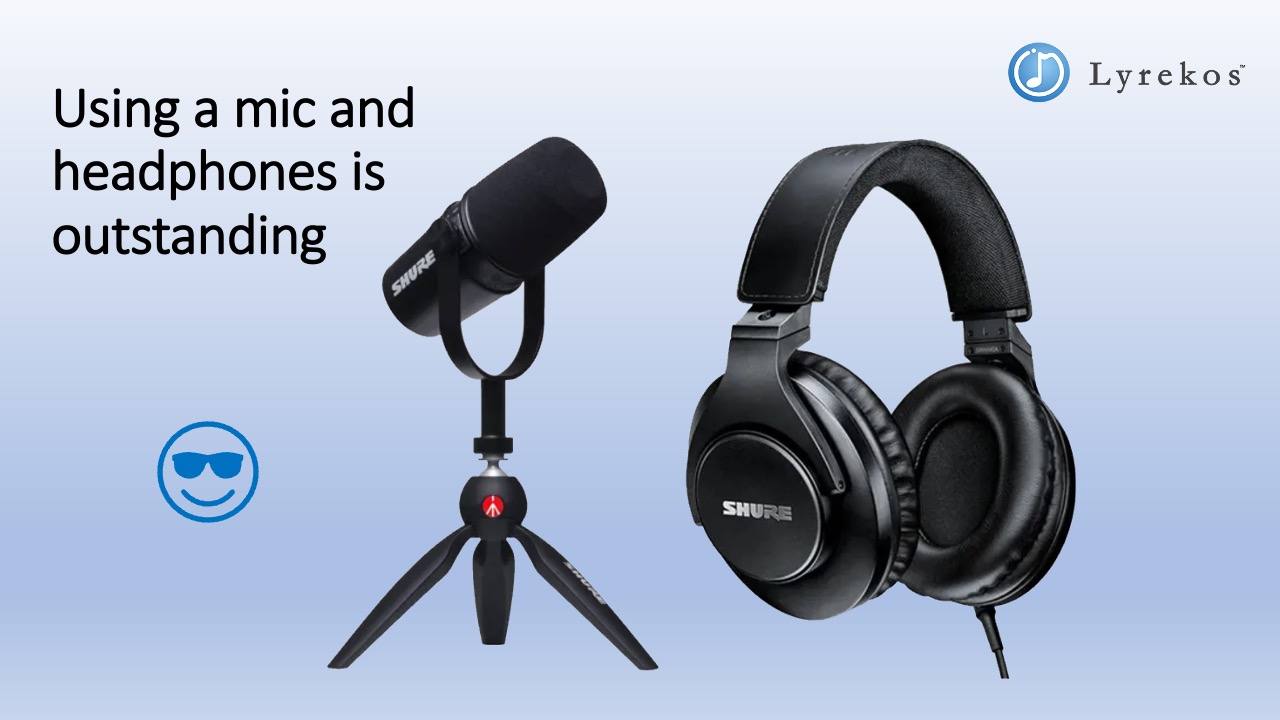
External microphone + headphones (best quality)
If you want the best possible audio, a dedicated USB or analog microphone combined with over-ear headphones is outstanding. Any quality mic will do — you do not need studio-grade equipment.
AirPods: Three Settings to Change
If you use AirPods or AirPods Pro with Lyrekos, three specific settings will give you the best experience. Open System Settings → AirPods (macOS) or the AirPods settings in the Bluetooth menu and set:
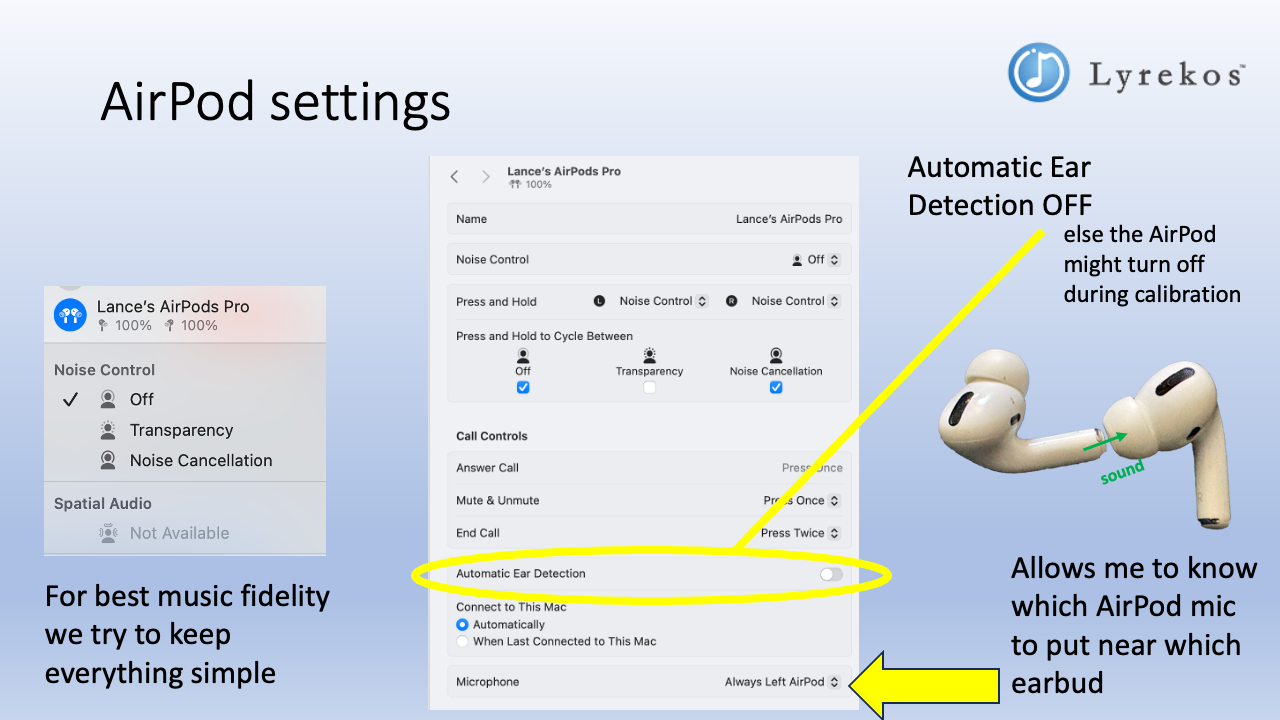
Automatic Ear Detection → Off. This is the most important one. If Automatic Ear Detection is on, removing an AirPod from your ear can pause audio or interrupt the session mid-calibration. Turn it off.
Noise Control → Off. Noise cancellation and transparency mode both process the audio in ways that can affect fidelity. For music, keep it simple and leave both off.
Microphone → I always use Left AirPod. Setting a fixed microphone means you always know which AirPod mic to position closest to speaker in the other AirPod for calibration.
Adding a Video Background (Chrome on Mac)
If you're using Chrome on macOS, Chrome lets you set a virtual background image for your camera — useful if you want to show a logo, sheet music, or any other image behind you during a session. (Other browsers and platforms have their own background features; check your browser's settings.)
Click the video camera icon in the Mac menu bar (top-right of the screen while Chrome is running), then choose Background.
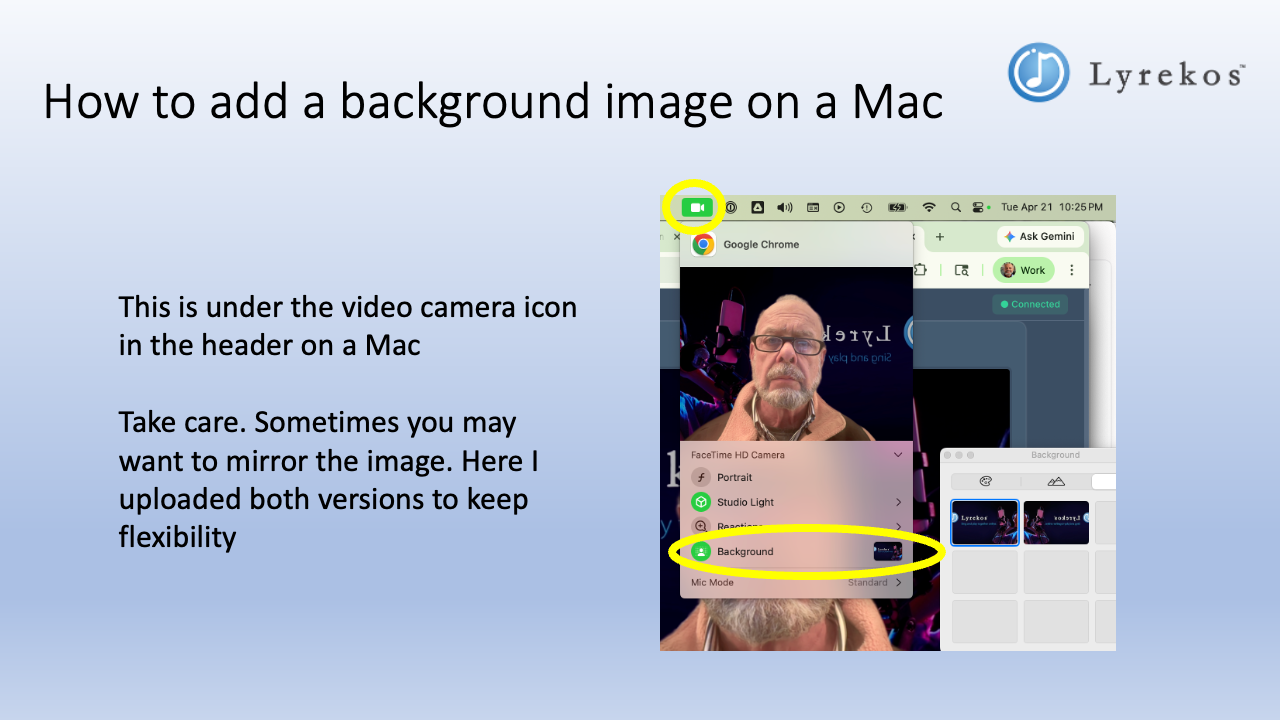
Tip: If your background image contains text or a logo, upload both a normal and a horizontally-mirrored version. Chrome sometimes mirrors the camera feed, so having both on hand lets you quickly switch to whichever looks correct to the other participants.
Chrome users: disable Chrome-wide echo cancellation if calibration is problematic
If you're using Chrome and calibration is failing, there's a one-time Chrome setting we have found is sometimes required for Lyrekos calibration to work correctly. Chrome has a built-in echo cancellation feature that, when enabled, processes your audio in ways that can interfere with Lyrekos's timing measurements during calibration. (This only affects Chrome — other browsers don't have an equivalent setting.)
To disable it:
- In Chrome, navigate to
chrome://flags - Search for echo cancellation
- Find Chrome-wide echo cancellation and set it to Disabled
- Restart Chrome
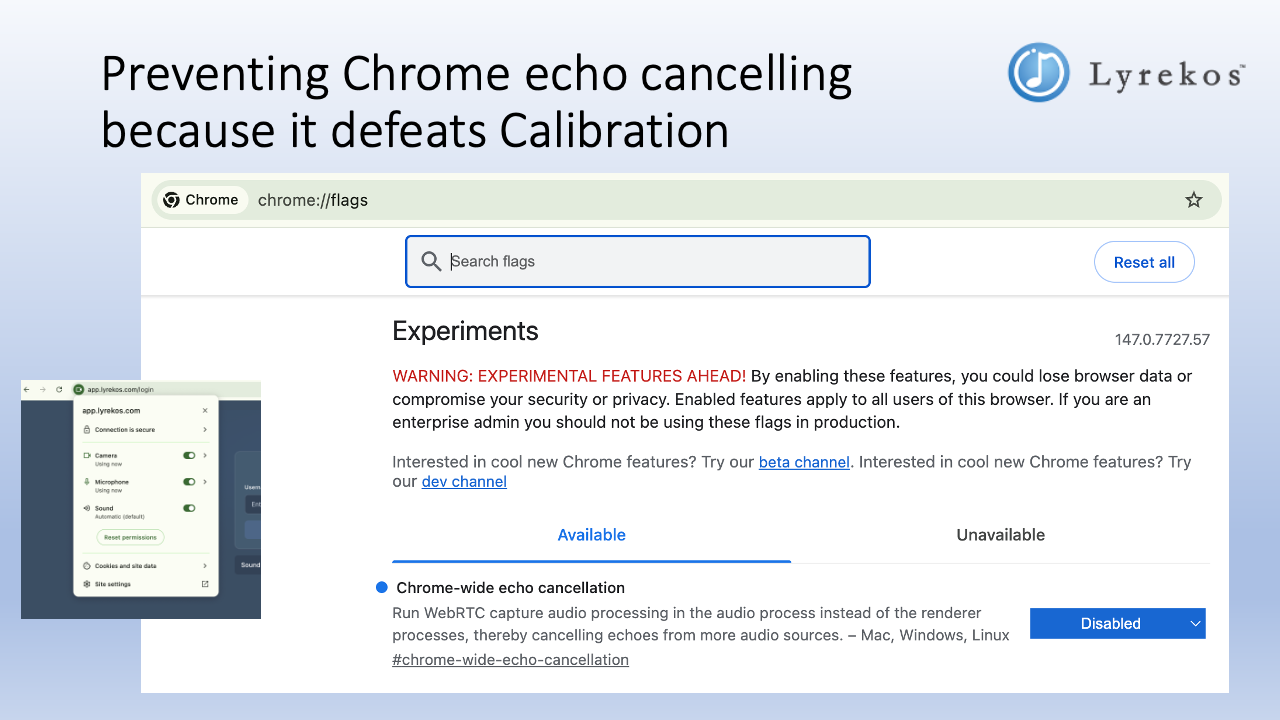
If you need to do this, you only need to do it once. The setting persists across sessions.
One Important Note
Lyrekos uses your computer's microphone and camera exclusively while a session is running. You cannot run Zoom, Teams, Meet, or any other application that uses your camera and microphone at the same time as Lyrekos — they will compete for the same resources. If you only have one microphone and camera, close other conferencing apps before starting a Lyrekos session.
You're Ready
That's the complete setup. The next step before making music together is a quick one-time calibration process.
Next step: Calibration — a brief process that lets Lyrekos measure your specific audio setup.