
Quick Start Guide for Performers and Audience
Lyrekos Preview Edition · Last updated October 28, 2026
Running a session? → Guide for Organizers
On this page
Welcome#
Lyrekos lets musicians perform together over the internet. Beyond the standard video conference, chat, and device selection, it automatically synchronizes music performance in real time across the internet. Each session is run by an Organizer, who invites up to 12 Performers to play and up to 4 Audience members to watch and listen. This guide is for those invitees; the Organizer has a guide of their own, the Quick Start Guide for Organizers.
The Organizer can play backing tracks and earlier recordings to everyone, record each performance, and play it back for the group to review. The key to synchronizing music over the internet is a per-device calibration process — there are no limitations regarding use of Wi-Fi or Bluetooth devices. Calibration locks an Ensemble in time even when the players are scattered across the world.
Lyrekos runs in current versions of Chrome (preferred), Edge, Safari (17.4 or newer) and Firefox; if your browser lacks something Lyrekos needs, the sign-in page tells you. Access Lyrekos from your browser at app.lyrekos.com.
Joining a session#
The Organizer adds you to their session with your email address, and you receive an email from Lyrekos. Click its link, choose a display name — the name the others will see — and agree to each policy to activate your account.
Then go to app.lyrekos.com and log in with your email address. If you belong to one session, you go straight into it; if you belong to several, choose the session first. If the Organizer hasn't joined yet, the page shows Waiting for Organizer, and the session begins when they join.
Device settings#
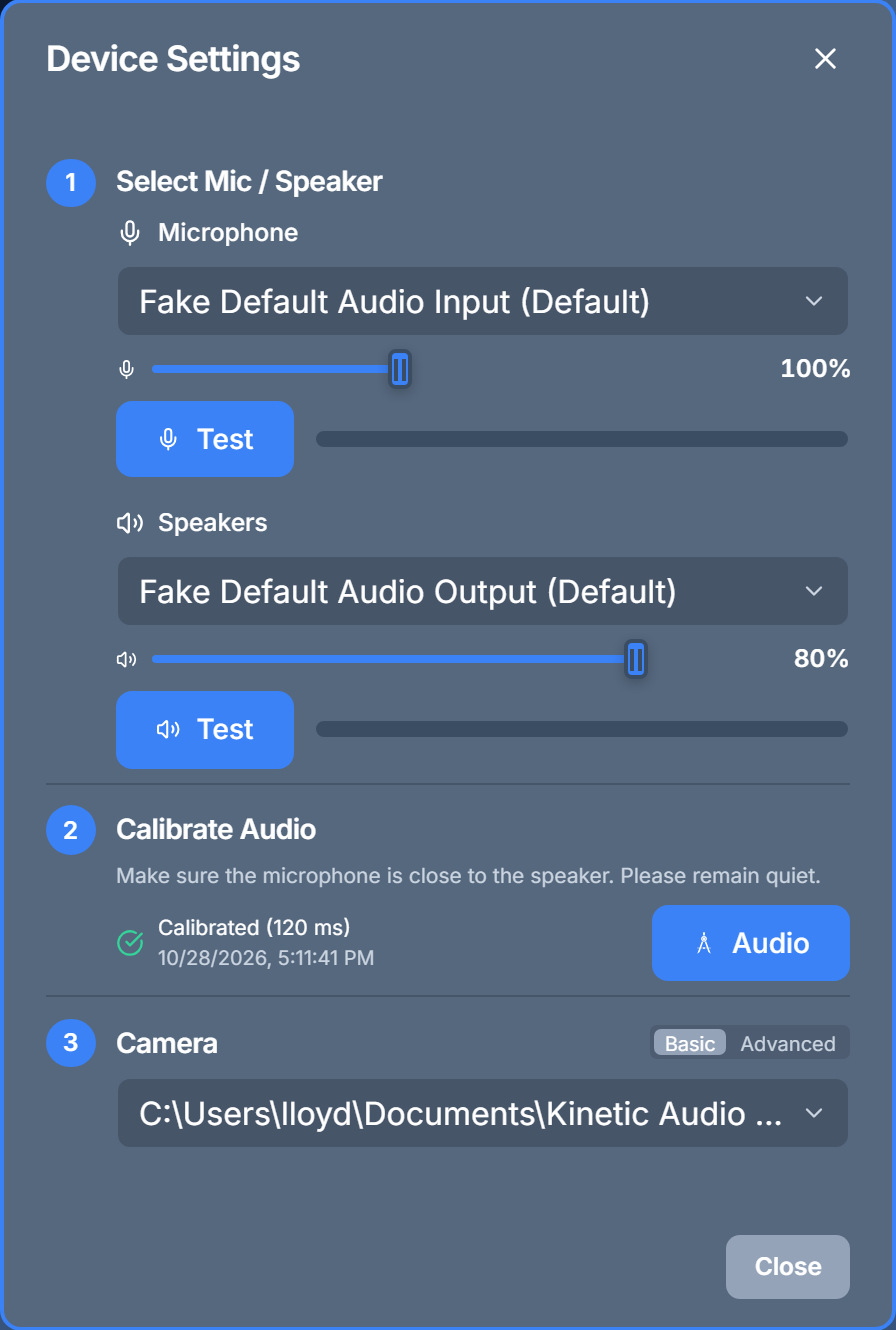
The Device Settings dialog opens by itself when you join, and the Device Settings tile reopens it at any time. It has three numbered steps: 1 Select Mic / Speaker, with a test button for each; 2 Calibrate Audio; and 3 Camera, where Basic chooses the camera and Advanced adds a preview and video calibration. Changes take effect as you make them; close the dialog when you're done. Headphones or earbuds are recommended whenever you perform.
The Performer page#
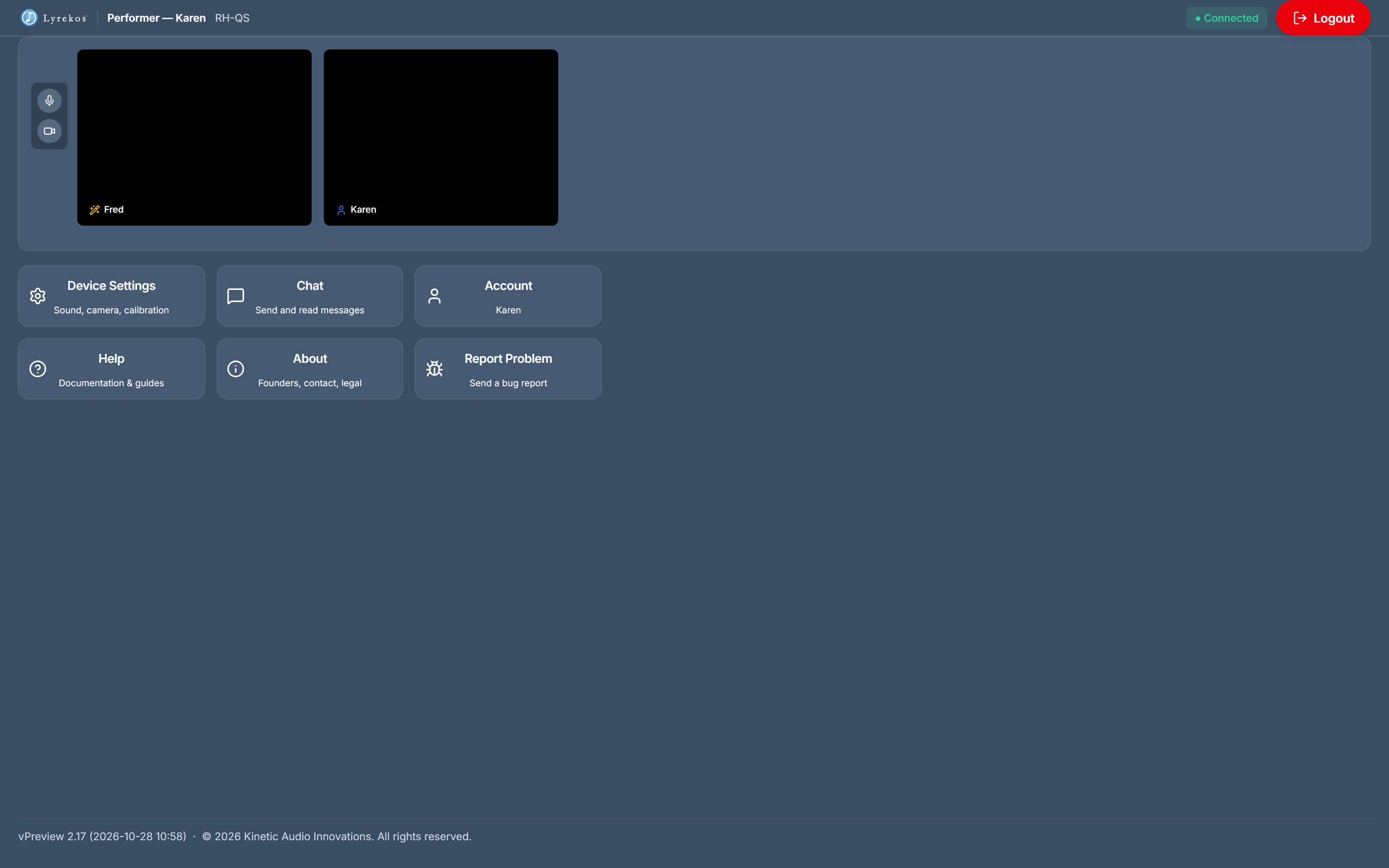
The video conference is at the top, with your microphone and camera buttons to its left. Below it are the tiles: Device Settings (sound, camera and calibration), Chat, Account (your display name and email), Help, About and Report Problem. In this guide's examples, Fred is the Organizer; Karen and Sally are Performers.
Getting ready#
Video Conference mode#
Once you have passed the Device Settings screen, you can communicate in video conference mode just like with any popular video conferencing app. A Chat function is also available. Video Conference mode is the default when Ensemble modes are not active.
Calibration#
Calibration measures the delay of your own microphone and speaker so Lyrekos can line your playing up with everyone else's. It is unique to a mic plus speaker combination; if this browser has calibrated that pair before, the result is applied automatically. To calibrate, press Calibrate in step 2: place the mic close to the speaker, listen to the introduction, and stay quiet while the calibration tones play. When it locks in, step 2 shows Calibrated with the measured time, which includes some special Lyrekos buffering.
If the test can't lock in — background noise, the wrong mic selected, volumes set too low — step 2 says so. Check the settings and try again. Calibration can't run while a take is being recorded.
Step 3's Advanced tab also offers Calibrate Video, which measures how far your camera's picture runs behind its sound so that recordings keep picture and sound together. Normally this calibration is not needed.
Performing in a take#
The Organizer chooses who plays on each take. Each participant has one role at a time: an Accompanist plays along with a backing track or with the Lead Performer; the Lead Performer is the featured performer the others follow; a Listener just listens. While a take is recorded, the Lead Performer and the Accompanists see a window over the page, which closes when the take ends.
Playing along with a backing track#
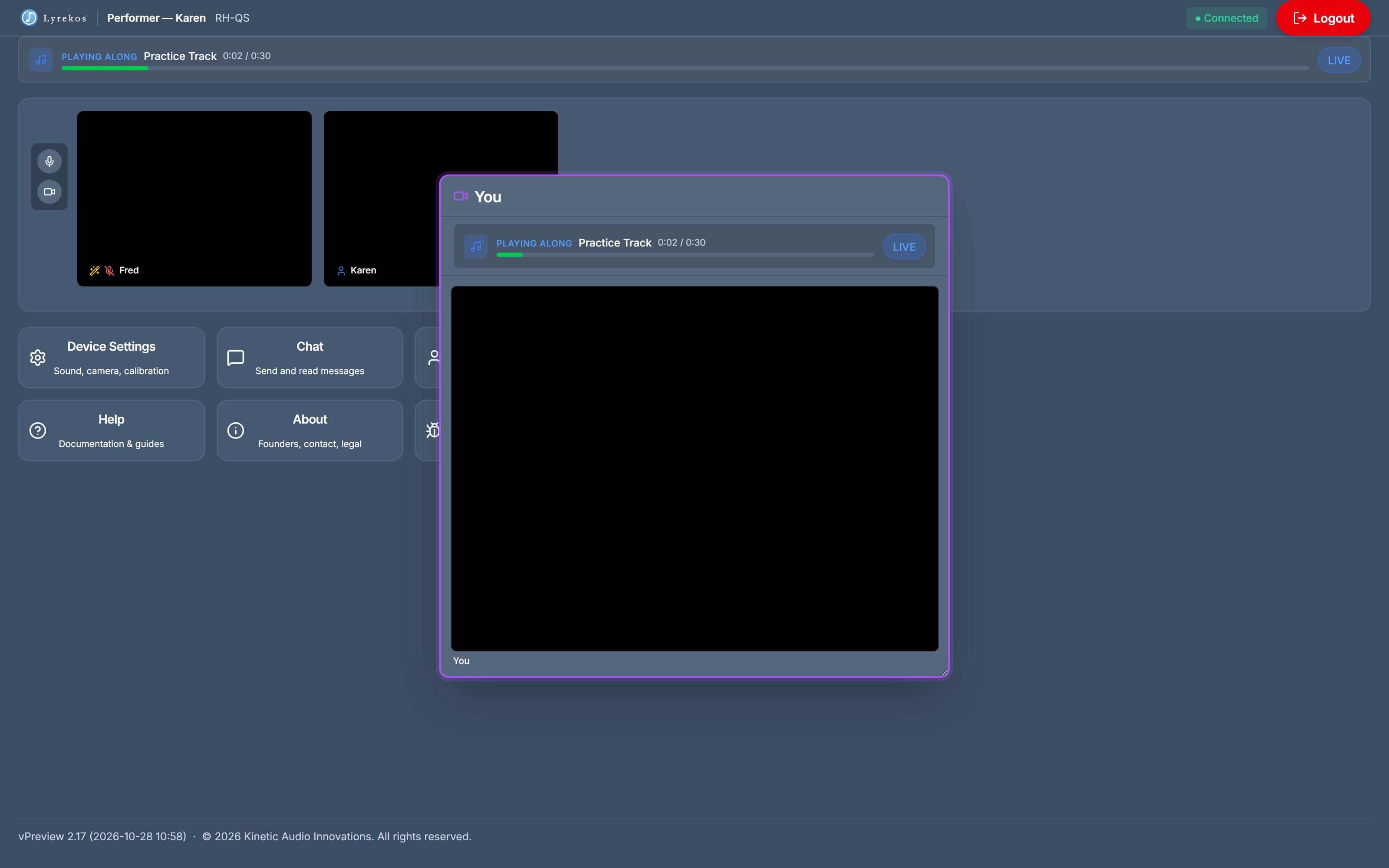
As an Accompanist playing along with a backing track, you see yourself, with the track's progress bar above (PLAYING ALONG) — or the track's own video, if the Organizer chose to show it. Play along with what you hear in your headphones.
Playing with a Lead Performer#
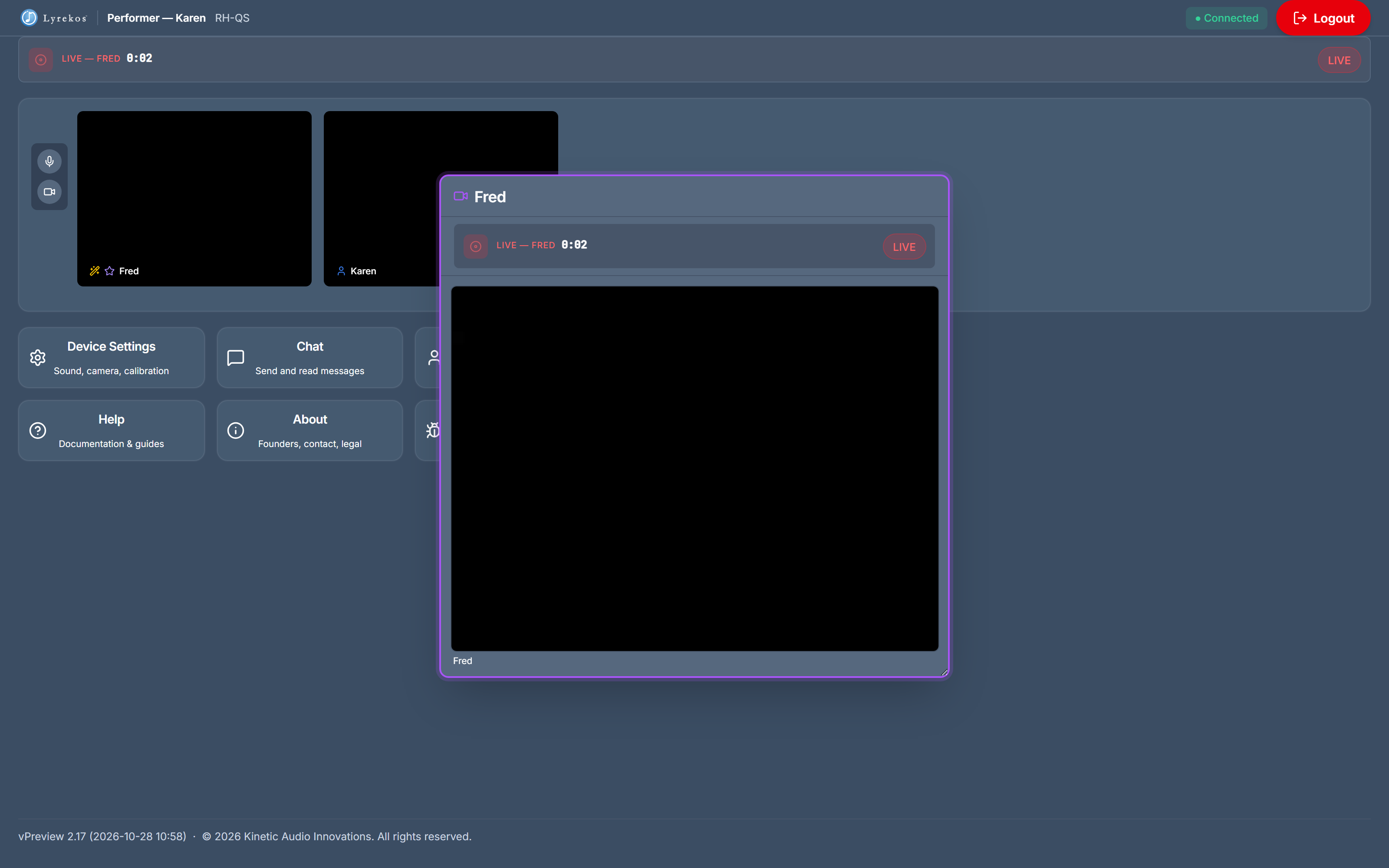
As an Accompanist with a Lead Performer, you see the Lead Performer's camera, with a timer counting up: the take lasts as long as the Lead Performer plays. The Lead Performer sees themselves, marked YOU ARE THE LEAD PERFORMER.
Listeners and late arrivals#
As a Listener, your microphone is muted during the take so the recording stays clean; you still hear everything, and a progress bar at the top of the page follows the take.
If you weren't ready when the Organizer started, the take goes ahead without you and the page says This take started without you, with the reason. You are still in the session and can play on the next take.
Playback#
After a take, the Organizer can play the recording back to everyone, pausing to comment and rebalancing the mix. Its video opens in a window on your page with a progress bar; set your listening volume with the speaker slider in Device Settings.
For the Audience#
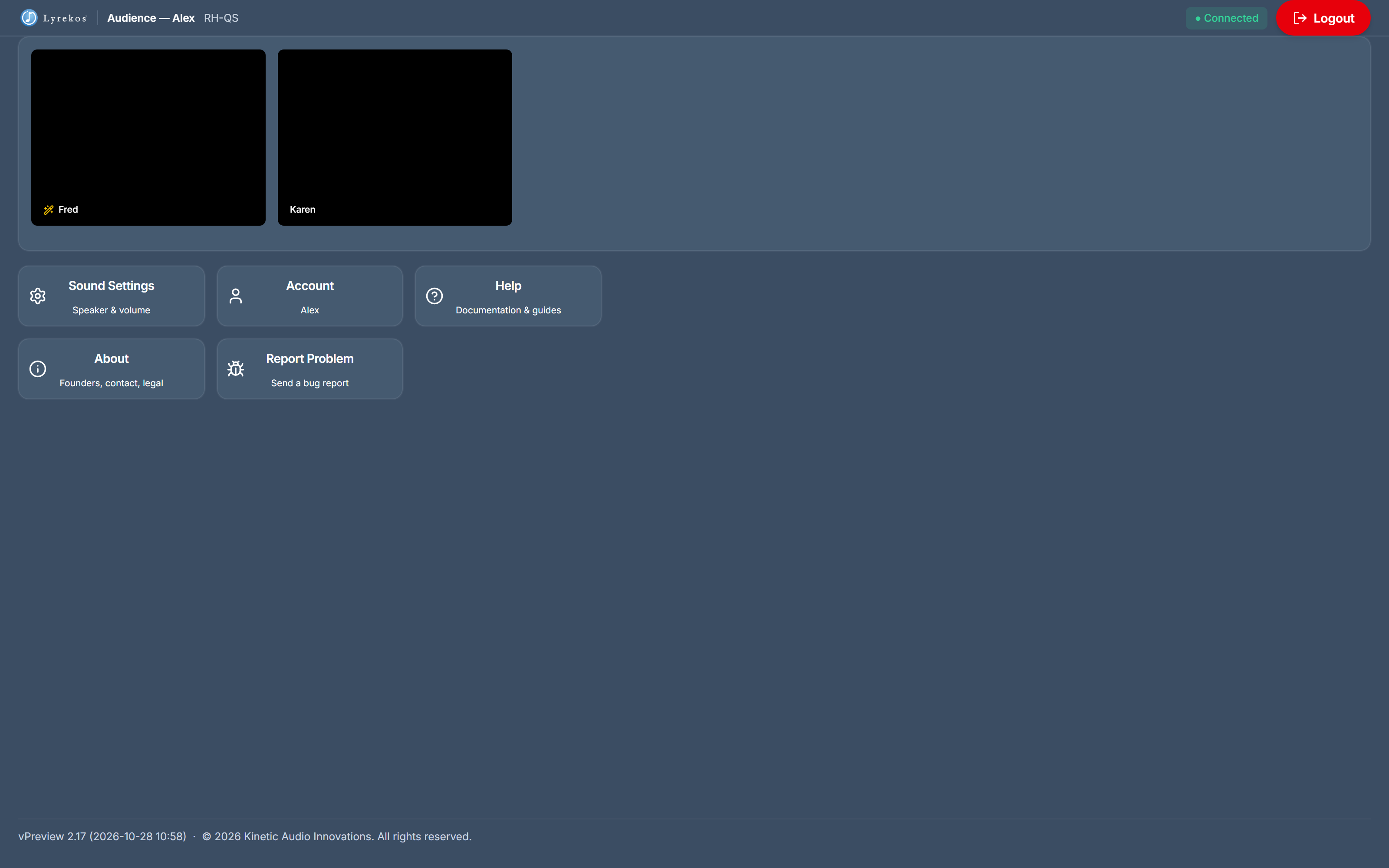
Audience members watch and listen: no microphone, no camera and no calibration. When you join, Sound Settings opens with a single step, Select Speaker — choose your speaker, set the volume and close it to start the sound. The Sound Settings tile reopens it.
The page shows the Organizer's and the Performers' cameras. During a take you hear the synchronized performance live, as the Organizer mixes it, with a progress bar at the top of the page; during playback the recording's video opens in a window, as it does for the Performers.
Feedback and Support#
In return for using this complimentary preview edition of Lyrekos, we ask that you provide feedback and — if any errors arise — submit a problem report using the Report Problem tile. Reports should be submitted immediately after observing any issue, no matter how small, so we can capture internal system information to help diagnose and resolve it. Please include as much detail as you can about what happened and what you observed so we can replicate the issue. Problem reports can also be used to send feedback, suggestions, or other comments.
You can also email us at support@kinetic.audio. Your comments are most welcome.
Questions? Email support@kinetic.audio
Email support