
Quick Start Guide for Organizers
Lyrekos Preview Edition · Last updated October 28, 2026
Invited to someone's session? → Guide for Performers and Audience
On this page
- Welcome
- About this guide
- Sign up
- The Organizer page
- Getting Started
- Roster
- Device settings
- Video Conference mode
- Calibration
- The Library
- Conducting the Ensemble
- Starting and stopping a take
- Example 1 — Library backing track
- Example 2 — Lead Performer with Accompanist
- Example 3 — Cascading recordings
- Iterating on a performance
- Downloading recordings
- Feedback and Support
Welcome#
Lyrekos lets musicians perform together over the internet. Beyond the standard video conference, chat, and device selection, it automatically synchronizes music performance in real time across the internet. By signing up for a complimentary account you become an Organizer and can invite up to 12 Performers to your session, plus up to 4 Audience members to observe.
You can upload audio files of many formats — including multi-track — to be played or used as backing tracks. Demonstrations can be recorded and stored in the session Library. The results of your performances can also be stored there, and a mix console lets you adjust each participant's gain during a performance and rebalance the tracks during playback. The key to synchronizing music over the internet is a per-device calibration process — there are no limitations regarding Wi-Fi or Bluetooth devices. Calibration locks an Ensemble in time even when the players are scattered across the world and even when Internet delays drift. Every session is heard live as it happens and every track is recorded so you can listen back or use it as a basis for the next iteration.
Lyrekos runs in current versions of Chrome, Edge, Safari (17.4 or newer) and Firefox; if your browser lacks something Lyrekos needs, the sign-in page tells you. Chrome is our preferred browser because we can control its parameters more finely. Access Lyrekos from your browser at app.lyrekos.com.
About this guide#
This guide is for the Organizer, who manages the session. Performers and Audience members have a guide of their own, the Quick Start Guide for Performers and Audience, which you can share with the people you invite.
Sign up#
Go to app.lyrekos.com and provide your email address — it becomes both your user ID and the name of your session. Click the link in the verification email, choose a display name, accept the policies and activate your account; you can then log in and start using Lyrekos immediately.
The Organizer page#
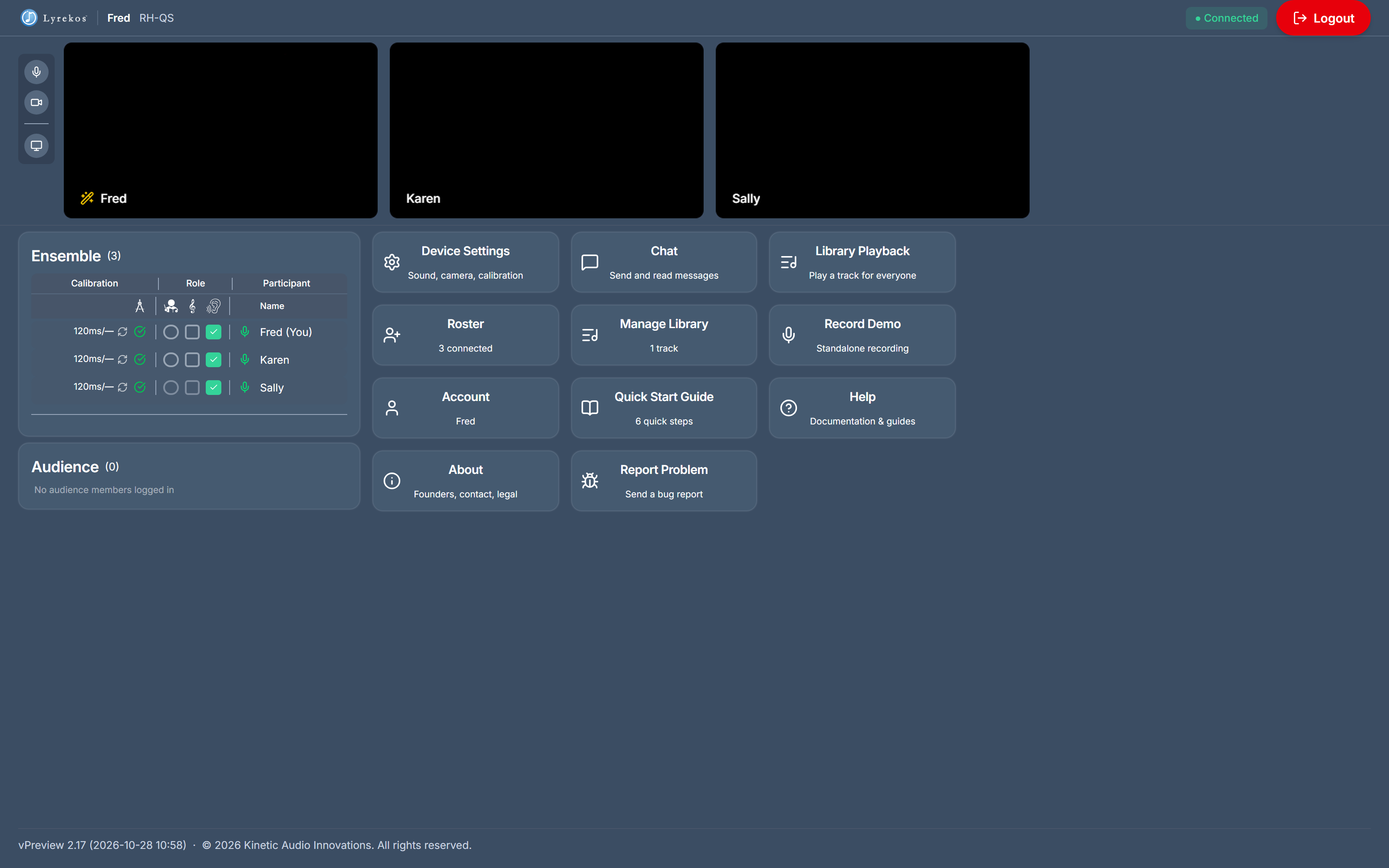
The Organizer page is shown below. Video conference screens are on top, the Ensemble panel is on the left with a summary of any Audience members below it, and the function tiles are on the right. In the examples that follow, Fred is the Organizer; Karen and Sally are Performers — think of a teacher with two students, or perhaps a trio rehearsing.
Getting Started#
Roster#
As the Organizer, open the Roster tile and invite Performers and Audience members to your session by entering their email addresses. Each invitee receives a verification email, and once they respond they can log into your session. The roster persists until you modify it or remove an invitee.
Device settings#
When you or any Performer logs in — and at any point during a session — confirm that the appropriate microphone, speaker and camera are selected. Headphones or earbuds are recommended for Accompanists. Device Settings opens automatically when you join a session. Audience members only need to select the speaker, in Sound Settings.
Video Conference mode#
Once you and your Performers have passed the Device Settings screen, you can all communicate in video conference mode just like with any popular video conferencing app. A Chat function is also available. Video Conference mode is the default when you are not conducting an Ensemble.
Calibration#
The Organizer and any Performers who will participate in an Ensemble performance must be calibrated so their audio can be synchronized. Calibration is unique to a specific mic plus speaker combination; if a previous calibration is found, it's applied automatically. To calibrate (or recalibrate), open Device Settings, step 2 Calibrate Audio: place the mic close to the speaker, listen to the introduction, and stay quiet while the calibration tones play.
If the test can't lock in — background noise, mic not selected or near the speaker, volumes set too low — the Ensemble panel shows a red mark instead of a green check. Check the device settings and try again. Anyone can initiate calibration from their own Device Settings, or the Organizer can trigger it from the Ensemble panel with the calibrate icon beside each participant. The Calibration column shows each participant's audio value and, if their camera is calibrated too (Device Settings → Camera → Advanced → Calibrate Video), the video value.
The Library#
Each Organizer has a Library to hold backing tracks, demo recordings, and recordings of Ensemble performances. Open it with the Manage Library tile. Audio files of many formats, including multi-track audio files, can be uploaded, downloaded, and manipulated.
Use the Record Demo tile on the Organizer page to capture a standalone solo recording by the Organizer (no Ensemble required); when you finish, it can be played to everyone for review before you save it to the Library as a backing track.
Conducting the Ensemble#
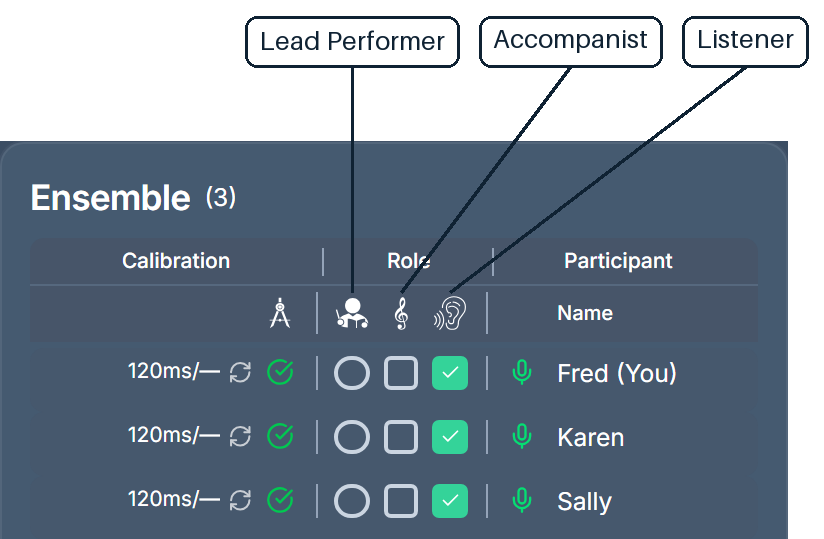
This is the core of the Lyrekos experience. Initially, all participants appear as Listeners, conversing freely in a video conference while the Organizer configures the Ensemble. Each participant has one of three roles at any time as assigned by the Organizer: a Listener simply hears the performance; a Lead Performer is the featured performer the others follow; an Accompanist plays or sings along with a Library backing track or with the Lead Performer. Audience members hear the final mix live, in real time. Performers not tagged as Lead Performer or Accompanist are auto-muted during a take so the recording stays clean — they still hear everything that's happening in sync. Unlike the default video conference that Lyrekos provides, think of conducting the Ensemble as a studio recording experience, with the Ensemble members ideally using headsets or earbuds and microphones.
Starting and stopping a take#
The Organizer tags Accompanists in the Ensemble panel, then chooses who or what leads them: a backing track from the Library (the track picker that appears below the participants) or a Lead Performer. Press Perform. Progress shows in the Ensemble panel and Performers see a Now Playing strip; press Stop when the piece ends.
Example 1 — Library backing track#
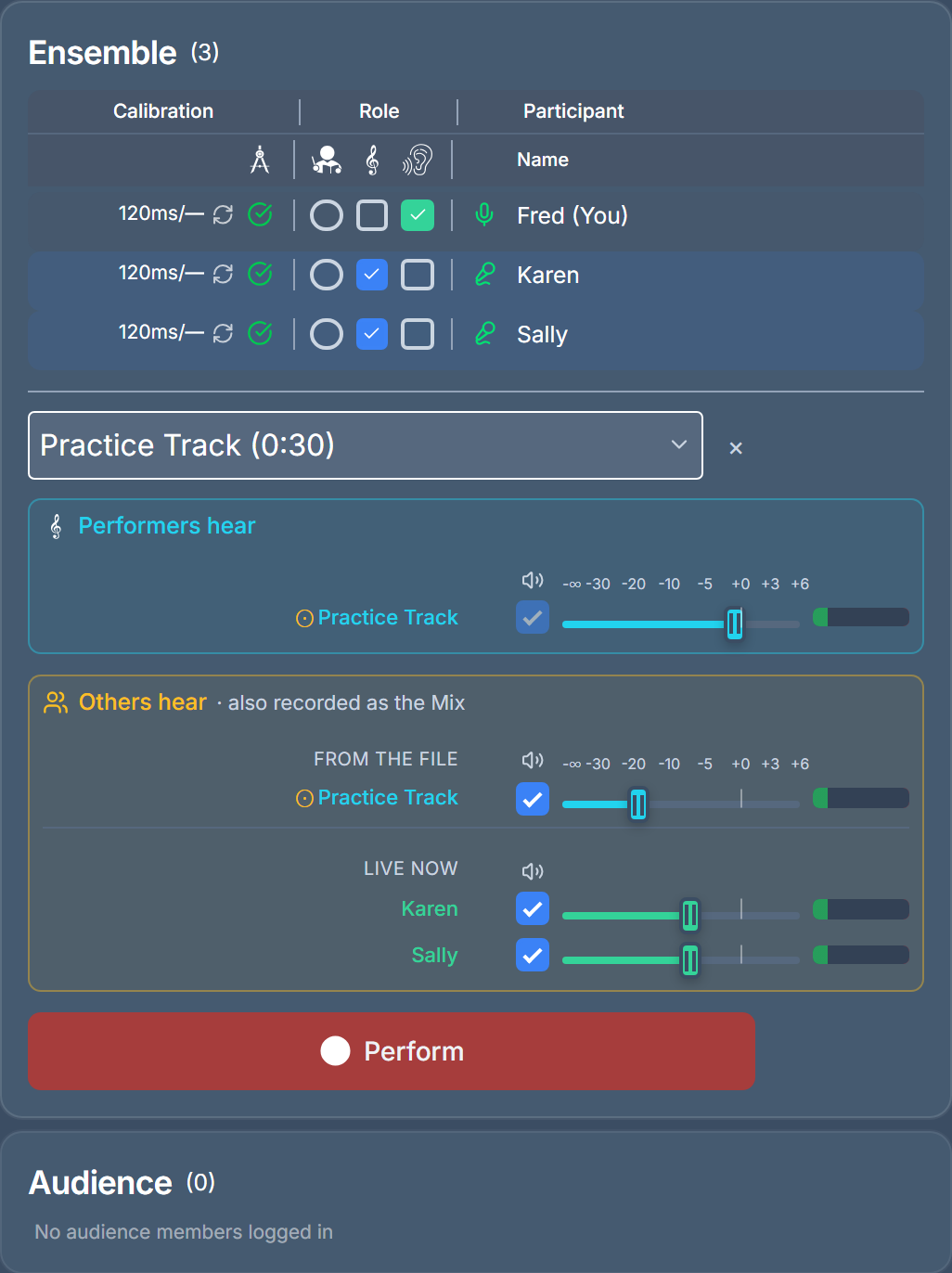
Fred (now a teacher) wants to challenge the two students to play along with a recording from the Library. Since everyone is already calibrated (green check mark under Calibration), Fred tags Karen and Sally as Accompanists and selects a track from the Library. Two boxes below the track picker set the sound: Performers hear sets what the Accompanists hear (here, the Library track), and Others hear sets what Listeners and the Audience hear, which is also recorded as the Mix. Fred can adjust their faders before and during the take. Since Fred is a Listener in this example, he hears the Others hear mix in sync in real time; the two Accompanists hear only the Library track while performing. In this example, they do not hear each other.
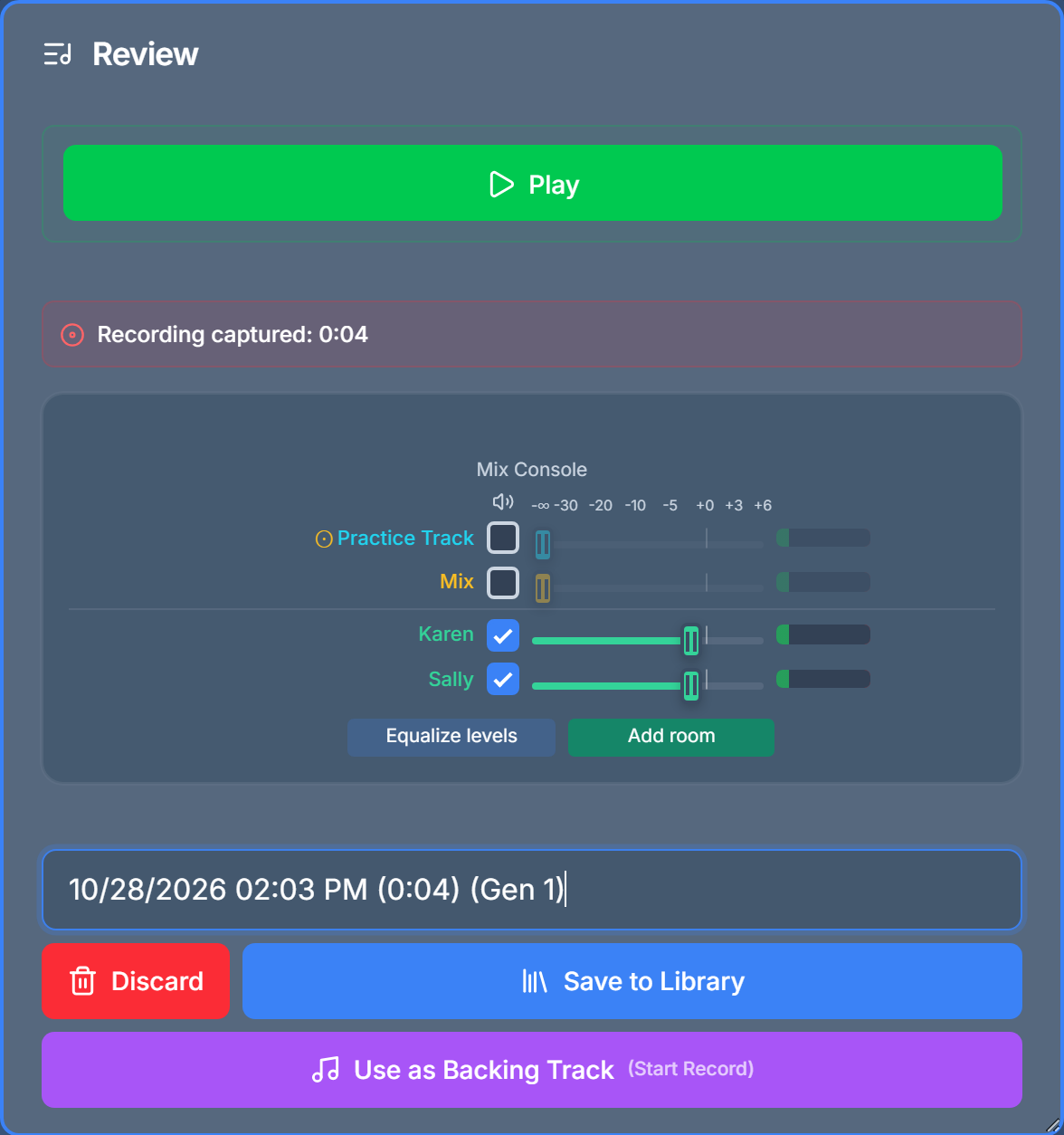
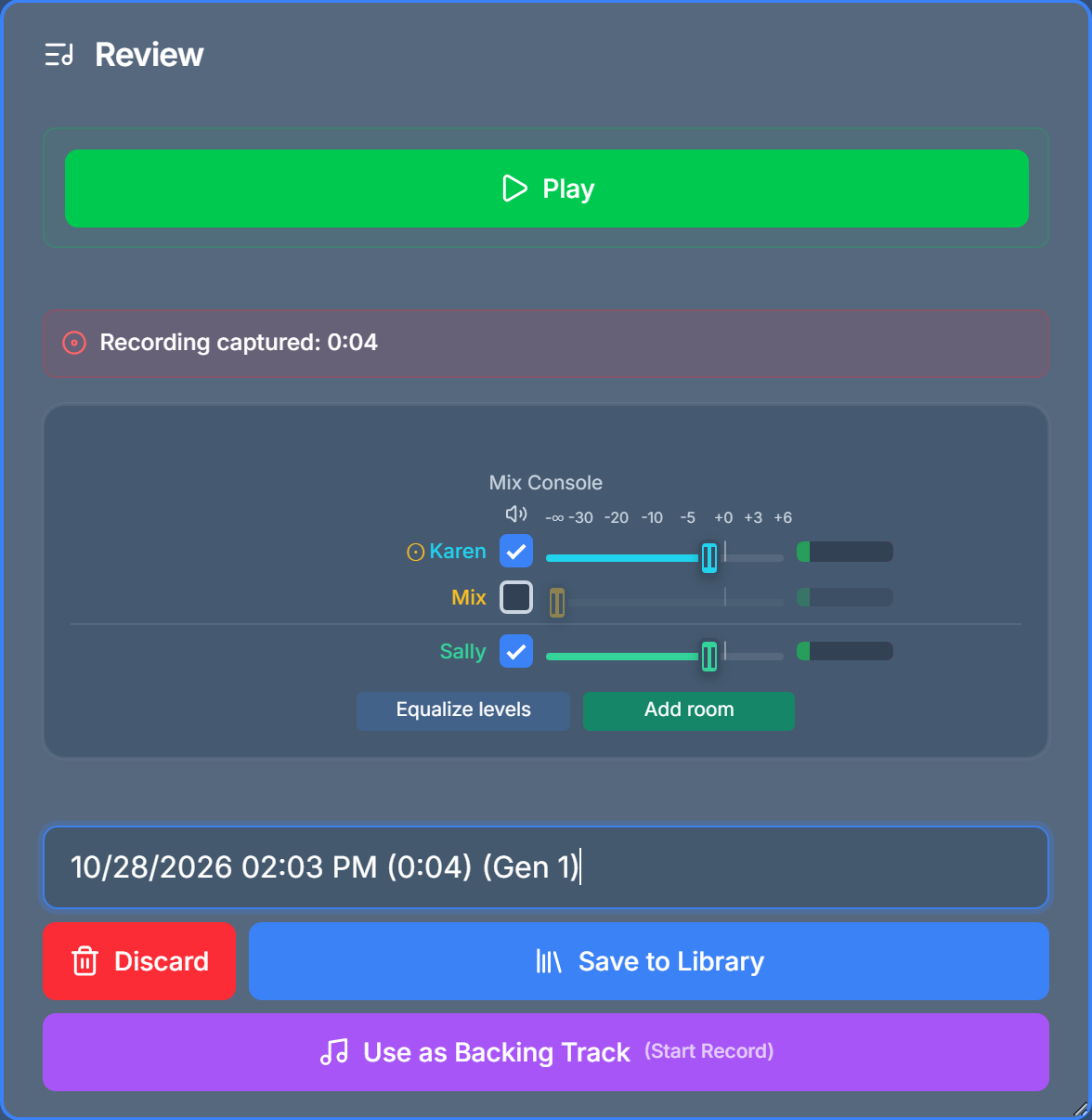
When the performance ends, the Organizer can immediately play back the multi-track recording for everyone to hear, pausing to comment on sections and rebalancing the mix to spotlight each Accompanist. In the Review dialog, Equalize levels balances the tracks and Add room places them together in a room. Below, you see Equalize levels in gray, indicating it is active, and Add room in green, indicating that it is ready to be engaged. The recording can then be renamed and saved to the Library, or discarded.
Example 2 — Lead Performer with Accompanist#
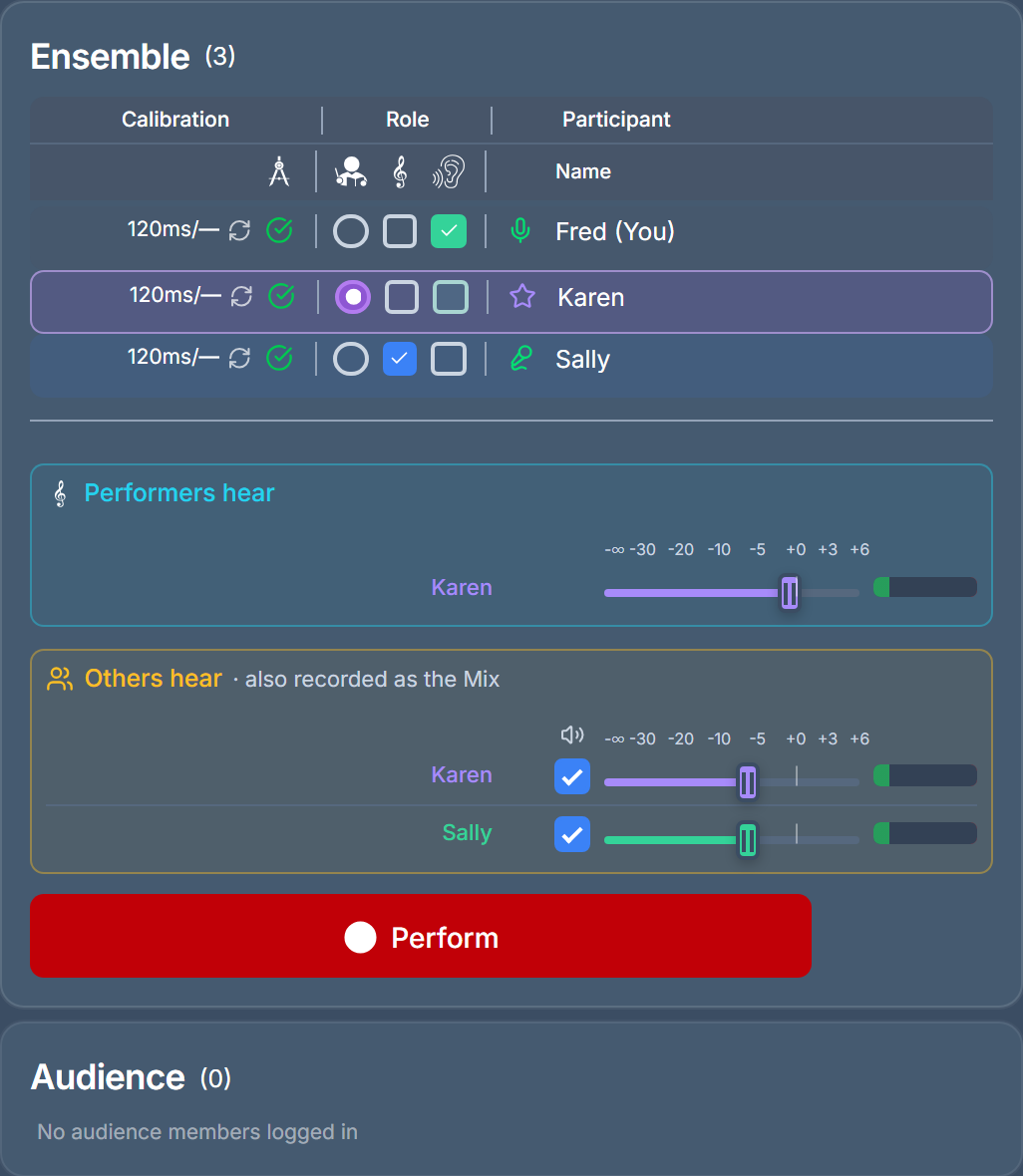
Rather than use a Library track, Karen is selected as the Lead Performer with Sally as the Accompanist. Karen performs hearing only herself, while Sally performs hearing Karen. Fred listens to the mix in real time and in sync.
When finished, the recording of the performance can be played back as in Example 1. Tap the purple Use as Backing Track button: the recording is saved to the Library and loaded as the backing track for the next take.
Example 3 — Cascading recordings#
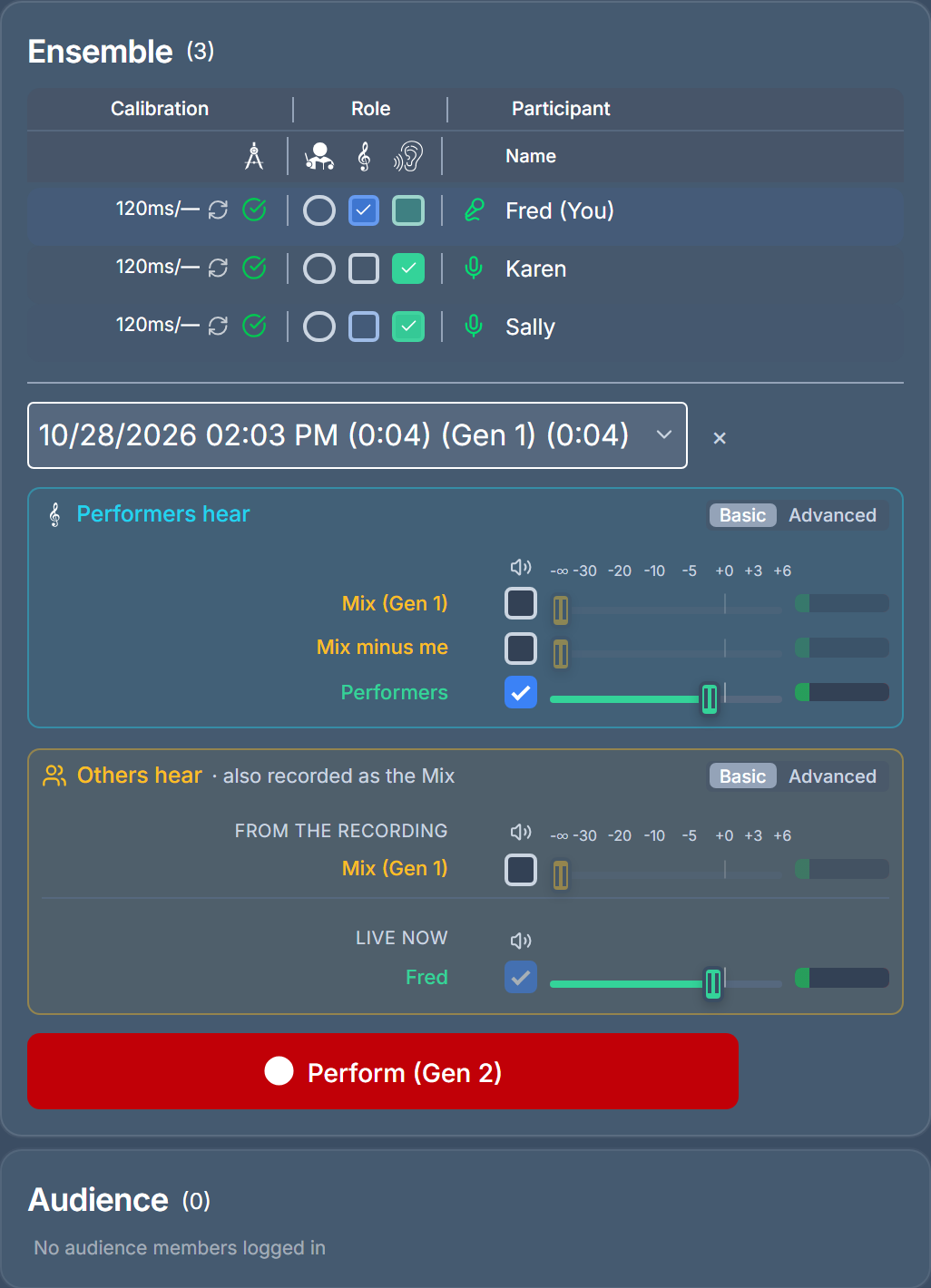
Iterating through multiple takes of the same song is a powerful way to create a great performance and enable people to sing while hearing each other. The recording we just made is now the track Fred will perform against. Fred is the Accompanist. In Performers hear, the Basic choices are Mix (Gen 1), Mix minus me, and Performers (the earlier take's performers, the default); switching to Advanced lists every track of the recording so Fred could pick Karen's or Sally's track alone or build a custom mix. Press Perform (Gen 2) to record the next generation. Use as Backing Track lets you cascade performances, each building on the performances of the others. Note that performers are now hearing each other.
Iterating on a performance#
Every take is recorded as a new generation of the piece. Use as Backing Track, or choosing an earlier take in the track picker, stages that recording as the source of the next take, and the Perform button names the generation it will record: Perform (Gen 2), Perform (Gen 3), and so on. A piece can be built up one or a few players at a time, each take recording its own performers and its own Mix.
Over an earlier take, Performers hear (what the Accompanists play along to) offers three Basic choices: Mix (Gen n), the earlier take's mix; Mix minus me, that mix without each listener's own earlier track; and Performers, only the earlier take's performers, which is the default. Others hear (what Listeners and the Audience hear, recorded as the new Mix) offers the earlier take's tracks and the live Accompanists; by default, only the live Accompanists are ticked.
Switch either box to Advanced to work with every track of the earlier take on its own, each with its own tick box and fader. In Performers hear, a video box beside a track shows that performer's recorded camera to the Accompanists while they play.
Downloading recordings#
Open the Manage Library tile and press Download on a recording. A plain audio file downloads in a format you choose. A Lyrekos recording opens the Download Recording dialog: one row per track (the Audio Mix and each performer) and three columns of tick boxes, each with Select all.
Audio gives one audio file per ticked row, in the format you pick: MP3 by default, or Opus, WAV, FLAC, OGG, AAC, M4A or WMA. Performer tracks get the levels saved with the recording; the Audio Mix downloads as recorded.
Single gives one video per ticked row, MP4 or MOV, with that performer's own sound. A camera with no track of its own gets the Mix.
Composite gives one video with every ticked camera in a grid, on the take's own timeline: a tile stays black until that performer's video starts. Tick the Audio Mix row in this column to use the Mix as the sound. Leave it unticked and the sound is the ticked performers' tracks combined at their saved levels; with no sound ticked, the composite is silent.
Every video download carries the Lyrekos logo in the bottom-right corner. Complete MKV package downloads the original recording exactly as captured, every track in one file, which is best for archiving. Files download one at a time, each with a progress bar and a Cancel button.
Feedback and Support#
In return for using this complimentary preview edition of Lyrekos, we ask that you provide feedback and — if any errors arise — submit a problem report using the Report Problem tile. Reports should be submitted immediately after observing any issue, no matter how small, so we can capture internal system information to help diagnose and resolve it. Please include as much detail as you can about what happened and what you observed so we can replicate the issue. Problem reports can also be used to send feedback, suggestions, or other comments.
You can also email us at support@kinetic.audio. Your comments are most welcome.
Ready? Sign up at app.lyrekos.com
Sign up