
One of the lessons I learned from decades in product development is that developers don’t always understand how customers will really use a new product. The goal of this post is to show you the variety of modes Lyrekos has and to help you think about all the ways you might be able to use it.
In our earlier post on teaching music online with Lyrekos, we described how to use Lyrekos in a specific way for a specific use case. After we describe the building block capabilities of Lyrekos, you can put those building blocks together in the way that works best for what you want to do. And maybe you will teach us a thing or two.
Lyrekos has a few fundamental modes that I will go through below. Note that in all cases, the person singing or playing an instrument hears themselves. The leader controls the modes in general and who hears what in specific.
Conversation Mode
Conversation mode is what you are familiar with from Zoom, Microsoft Teams, and Google Meet. Everyone can talk or transmit audio to everyone else. We lean heavily in the direction of the best musical performance, a little like Zoom’s “original sound for musicians.” In the present implementation, the audience cannot talk to the leader or performers, though they will be able to use the chat function. Do you think this is the right design choice?
Participants can be either a leader, a performer, or an audience member. There can be any number of participants or audience members. For each attached computer or smartphone, there can be one person, or many connected. For instance, it might be appropriate for the “leader” to in fact be a quartet in that location, each responsible for a different part, e.g., SATB (soprano, alto, tenor, bass).
In the diagrams below, the colored arrows represent audio paths, with the arrows representing the direction that the audio is going. Figure 1 below demonstrates conversation mode and shows that everyone hears everyone else where the leader and performers can broadcast audio. As with Zoom, for this to work, people generally need to be polite and stay quiet as someone else talks. Latencies are typical for any Internet collaboration application.
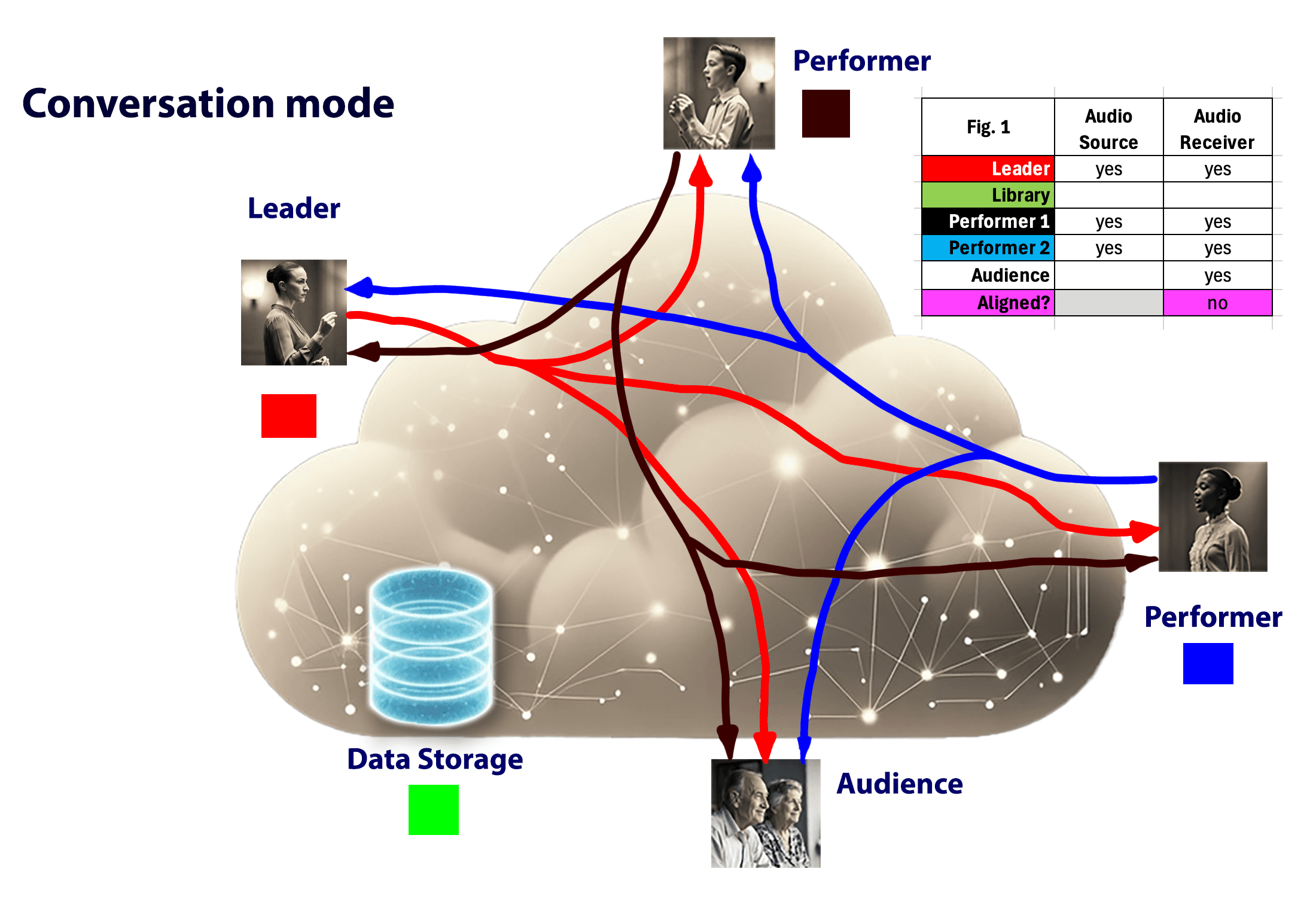
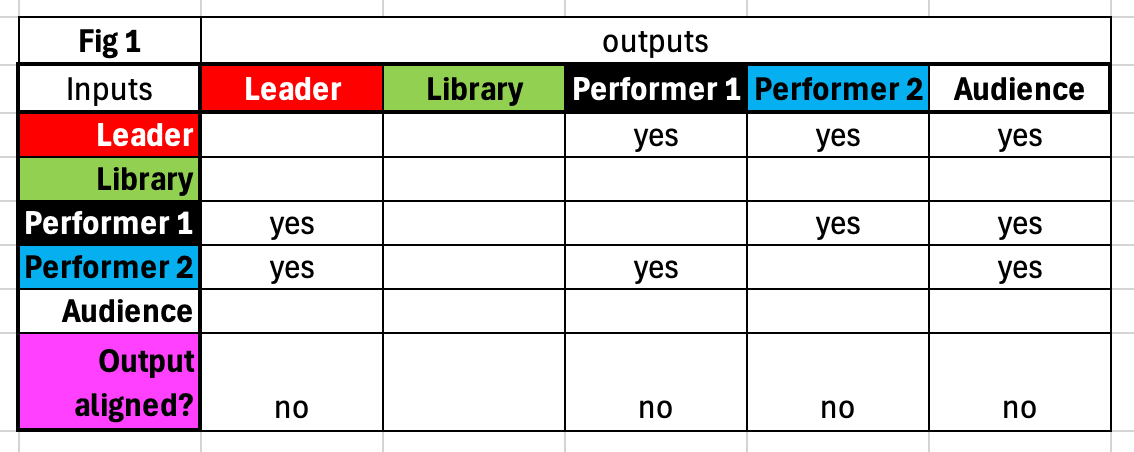
There are a couple of other ways to look at this mode. In the inserted table in Figure 1, you see which inputs and outputs are active. Below in Table 1, you see a more extensive visualization that shows which inputs go to which outputs. This matrix is what the leader controls. In conversation mode, no outputs are aligned.
Live Mode
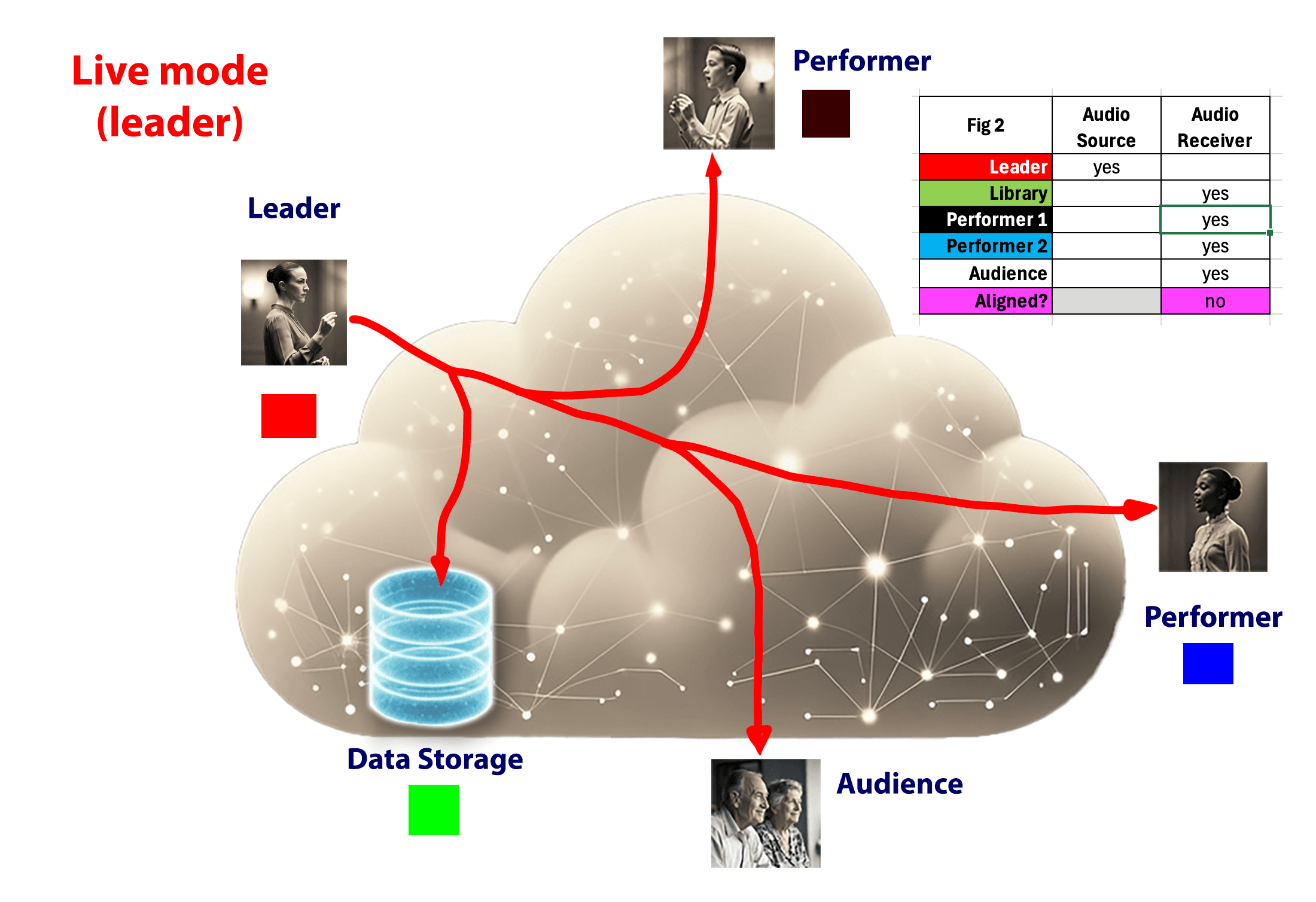
In live mode, the leader or any designated performer can broadcast audio to the audience, the performers, and also stream audio to the data storage unit, which we call the “library,” in the cloud. In Figure 2 below, we see the leader streaming to everyone else. In the Teacher blog, the leader was the teacher demonstrating how the song should be sung or played. The performers were students. The audio is recorded and stored in the library. Audio that is stored in the library can later be used as a backing track.
It is not only the leader who can do this. In Figure 3 below we see one of the performers transmitting live. The leader designates who gets to transmit in live mode, with the default being the leader, but it can be any performer.
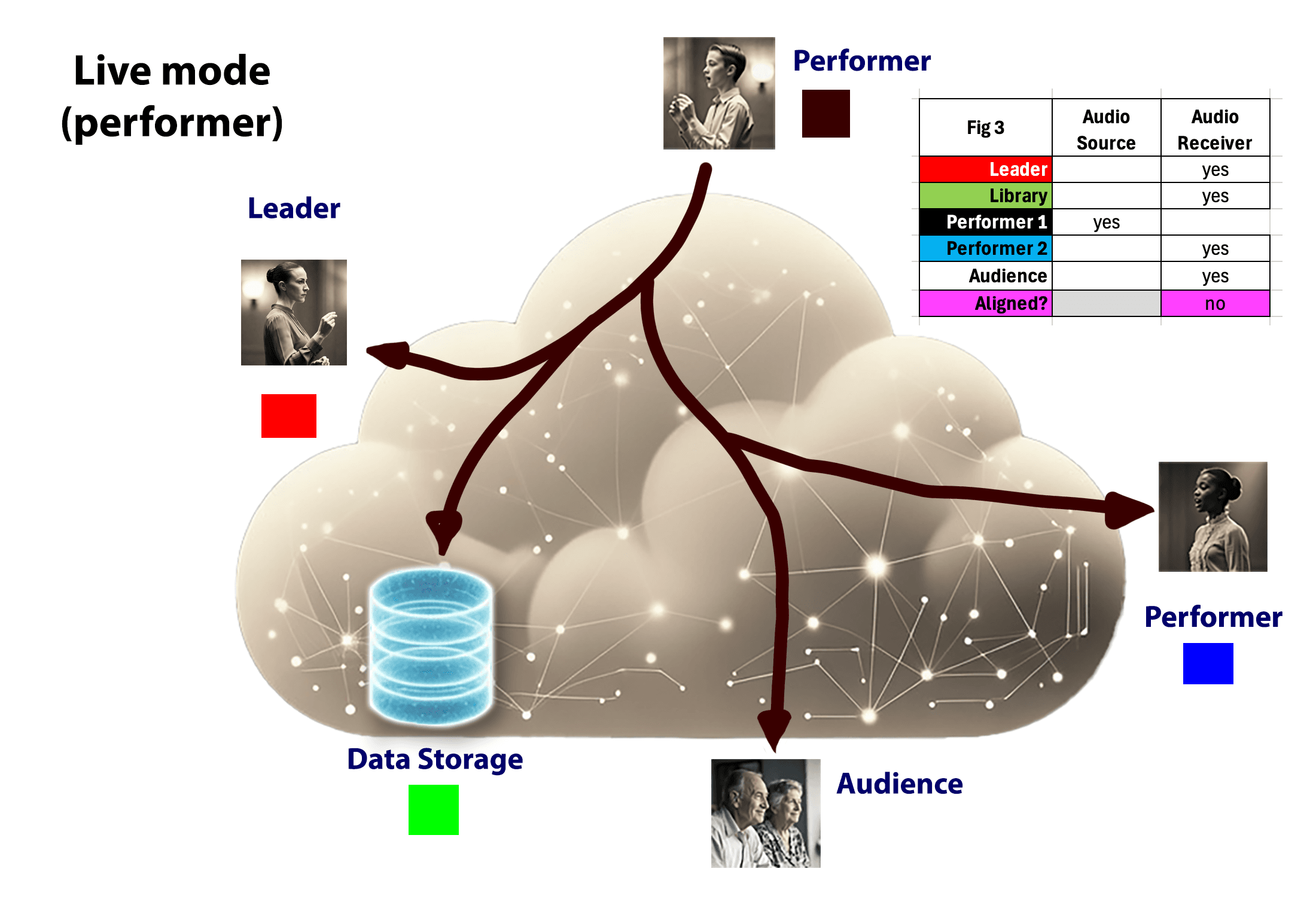
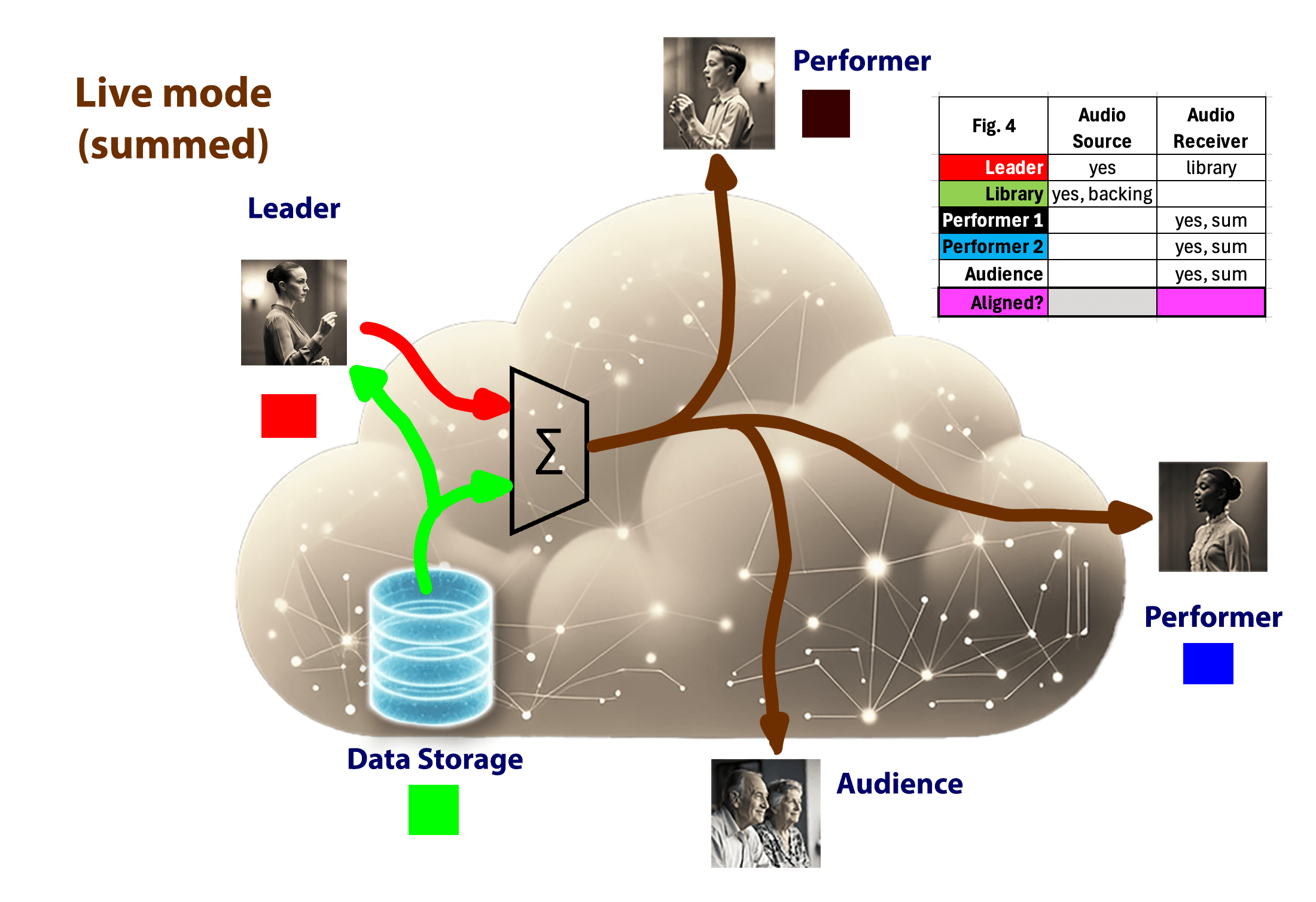
Figure 4 illustrates a variant on the configuration discussed in Fig 2, but with the teacher talking as the song is retrieved and played for everyone from the library. She might, for instance, be discussing the subtle points of a prerecorded performance. The leader and library (data storage) signals are mixed, and the leader has control of the library and the mixer parameters. Note that everyone except the person designated by the leader is muted during live mode.
Unison Mode
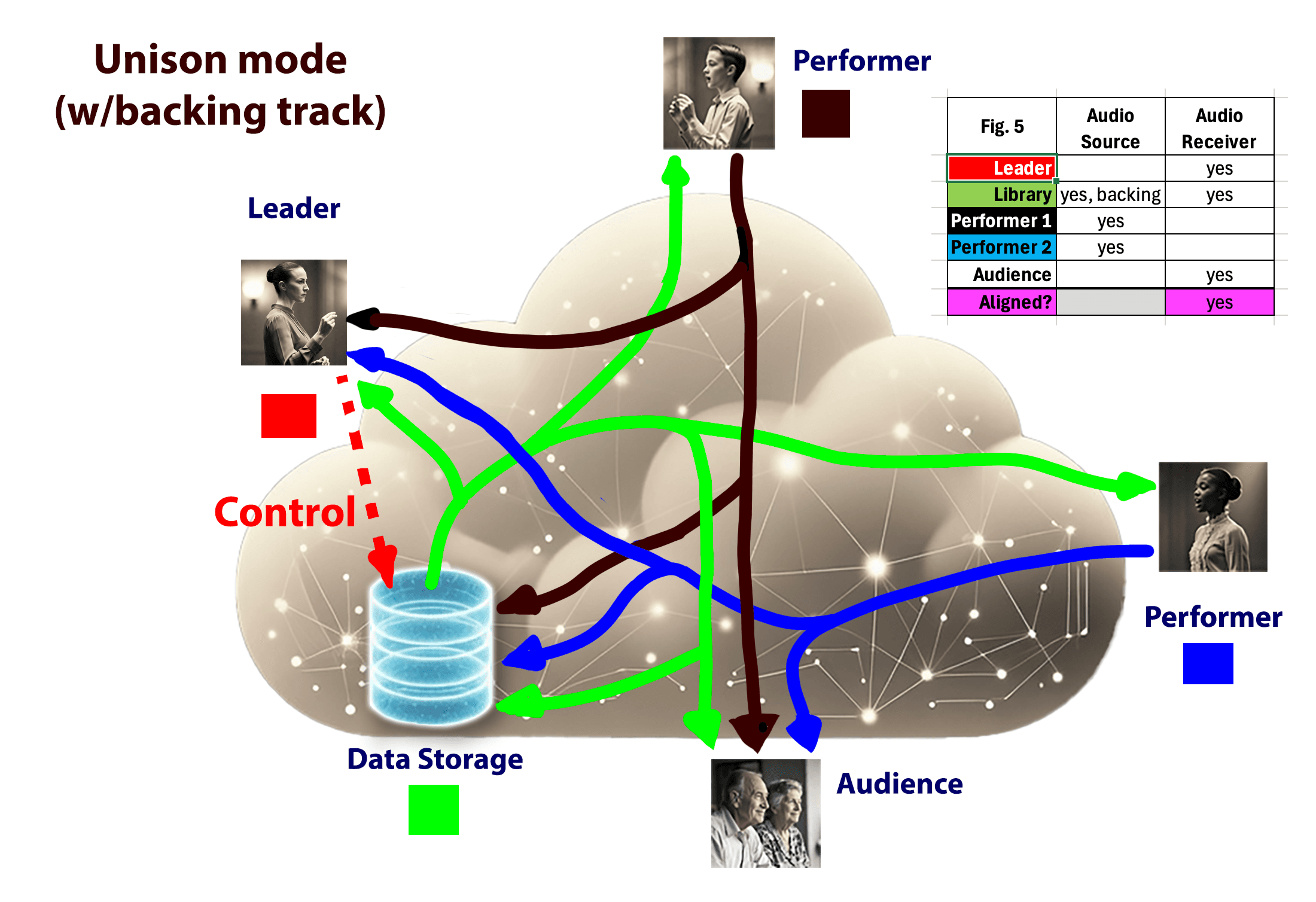
Unison mode is the most complex of the modes and it is also where our patent-pending magic happens. The leader commands the Data Storage device in the cloud to play a song from its library. That stream goes to everyone. This is the backing track that enables people to sing or play the same song. The performers hear the backing track and respond by singing or playing their part in synchrony with the backing track. That sound goes to the leader, the audience, and is stored in the library for later review or use. Note that the performers do not hear each other. This is illustrated in Fig. 5. The leader controls how much of the backing track the audience and library hear.
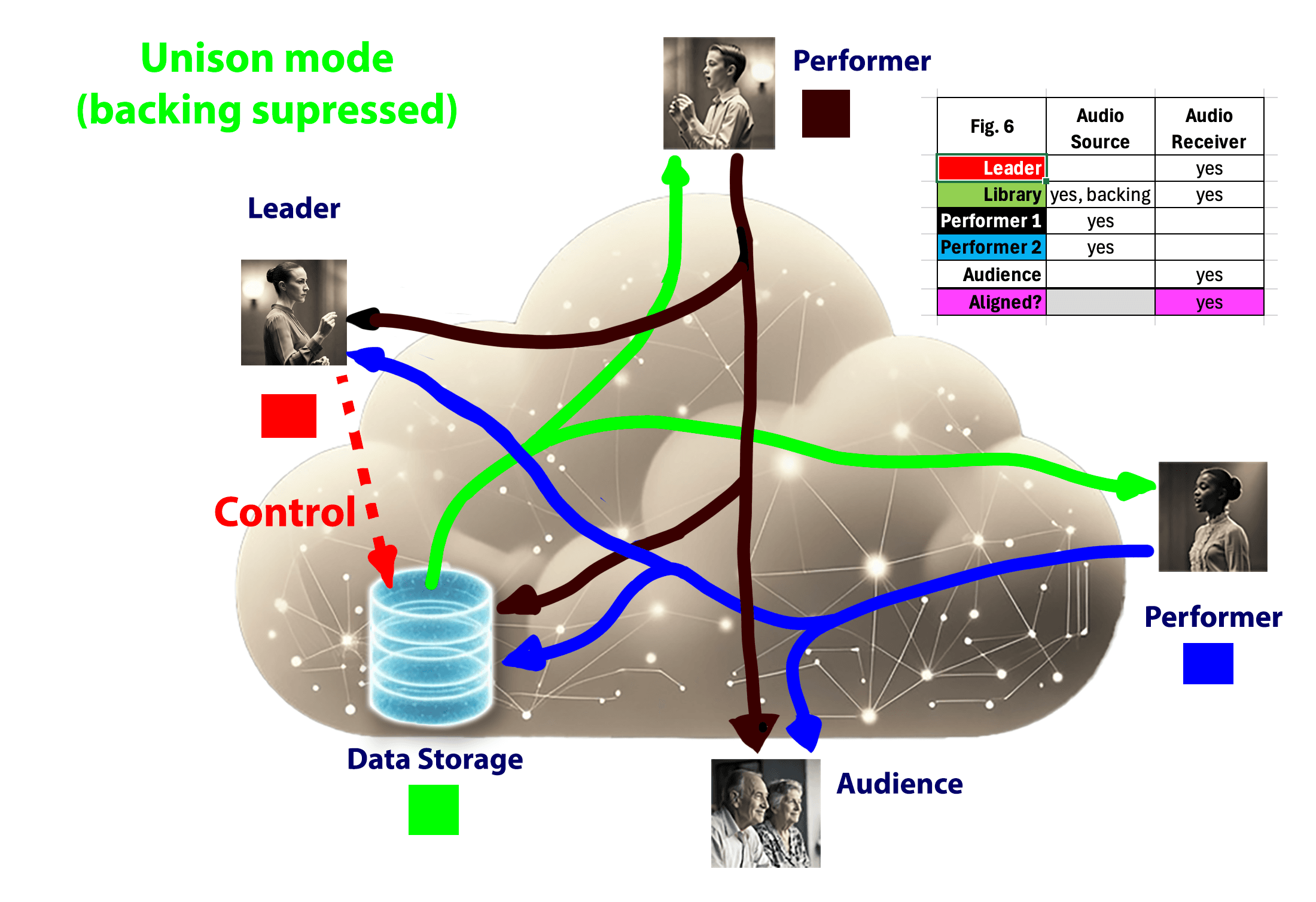
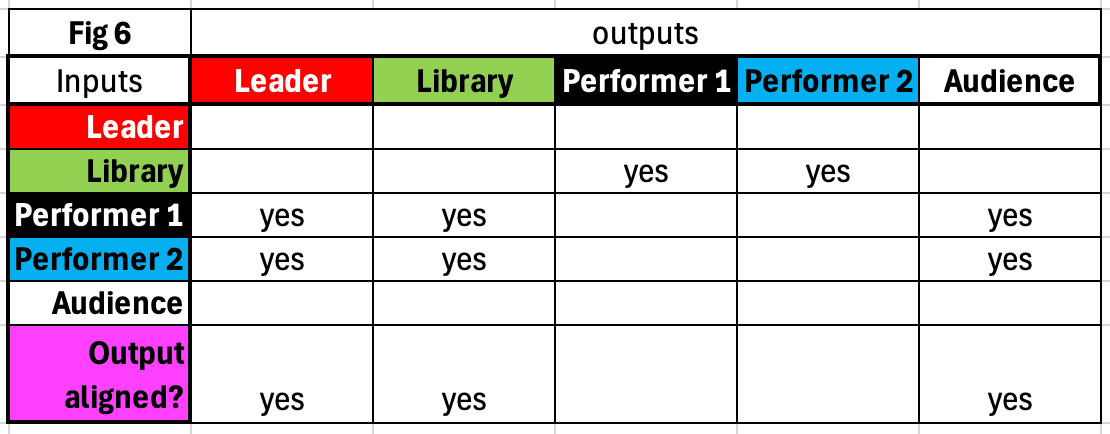
In an extreme case, one can silence the backing track that goes to the library and audience. This might be desired if, for instance, the backing track comes from a piano but one wants the final product to be voice only, i.e., a cappella. This case is shown in Fig. 6 where the backing track is suppressed for everyone except the performers.
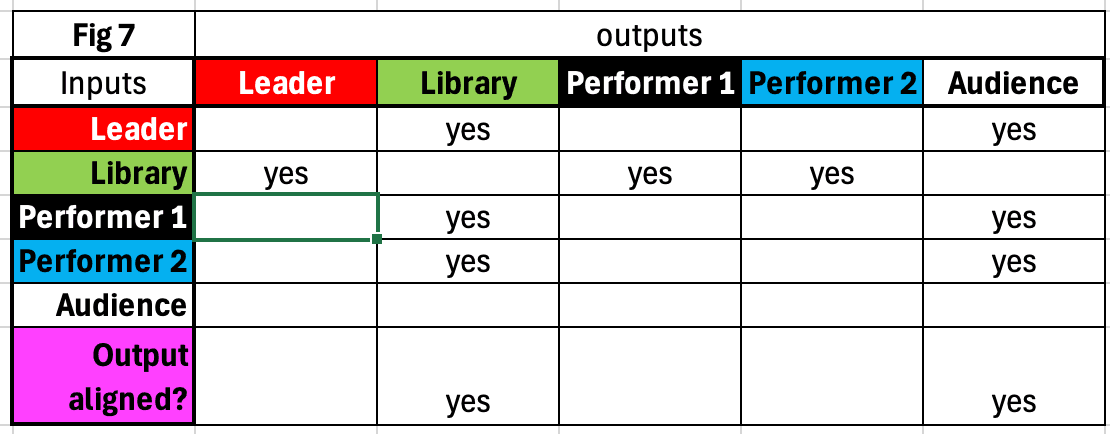
This is a good example where the full table is helpful. See below.
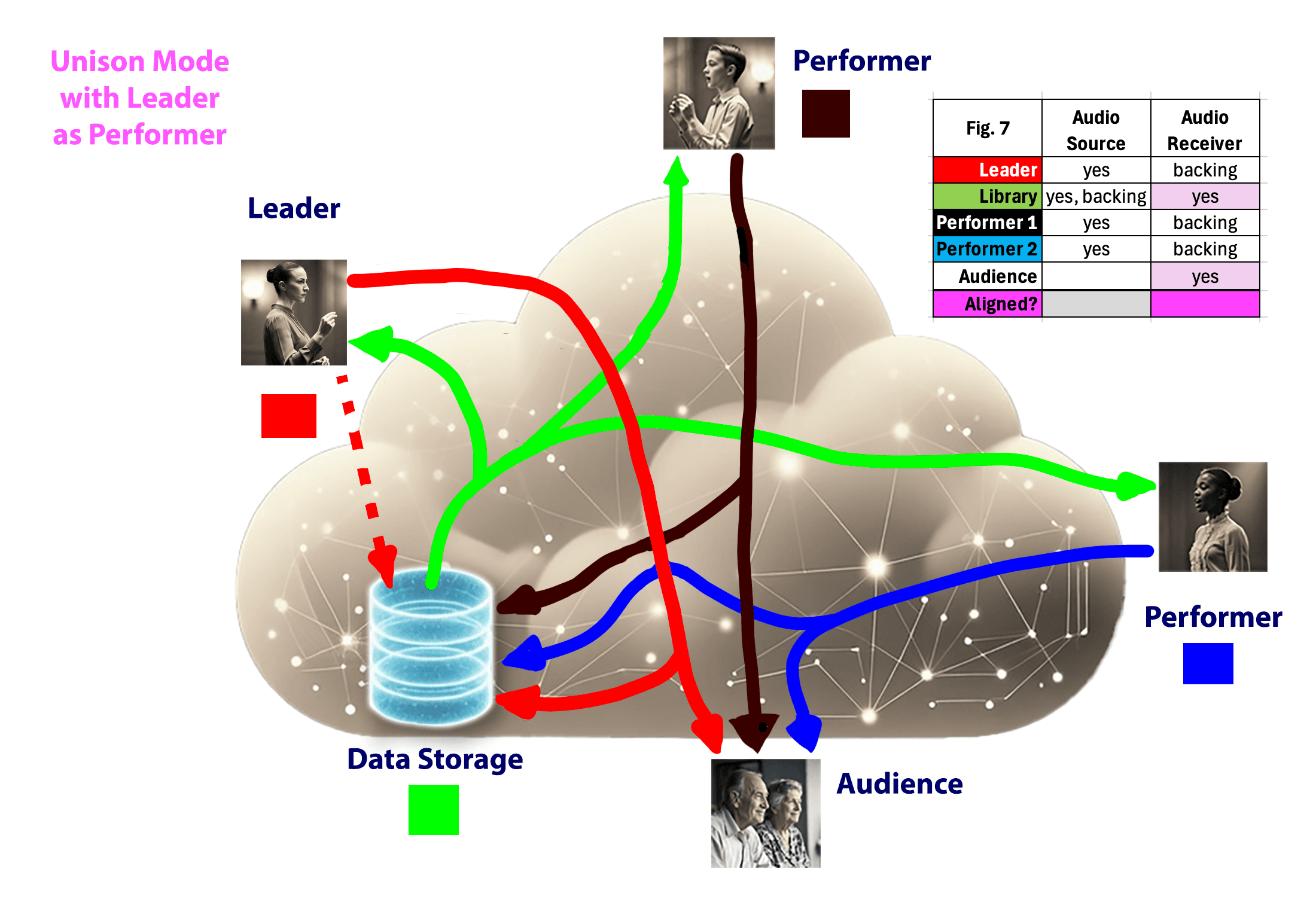
Note that it is possible for the leader to include themselves as an extra participant. While the backing track can be created by the teacher in live mode, the backing track can come from almost anywhere, including a performer or purchased music. It is the latter cases where the leader might want to sing or play along. Note that when they do that they cannot hear the other performers, only the backing track. (The result can be reviewed later.) That case is shown in Fig. 7.
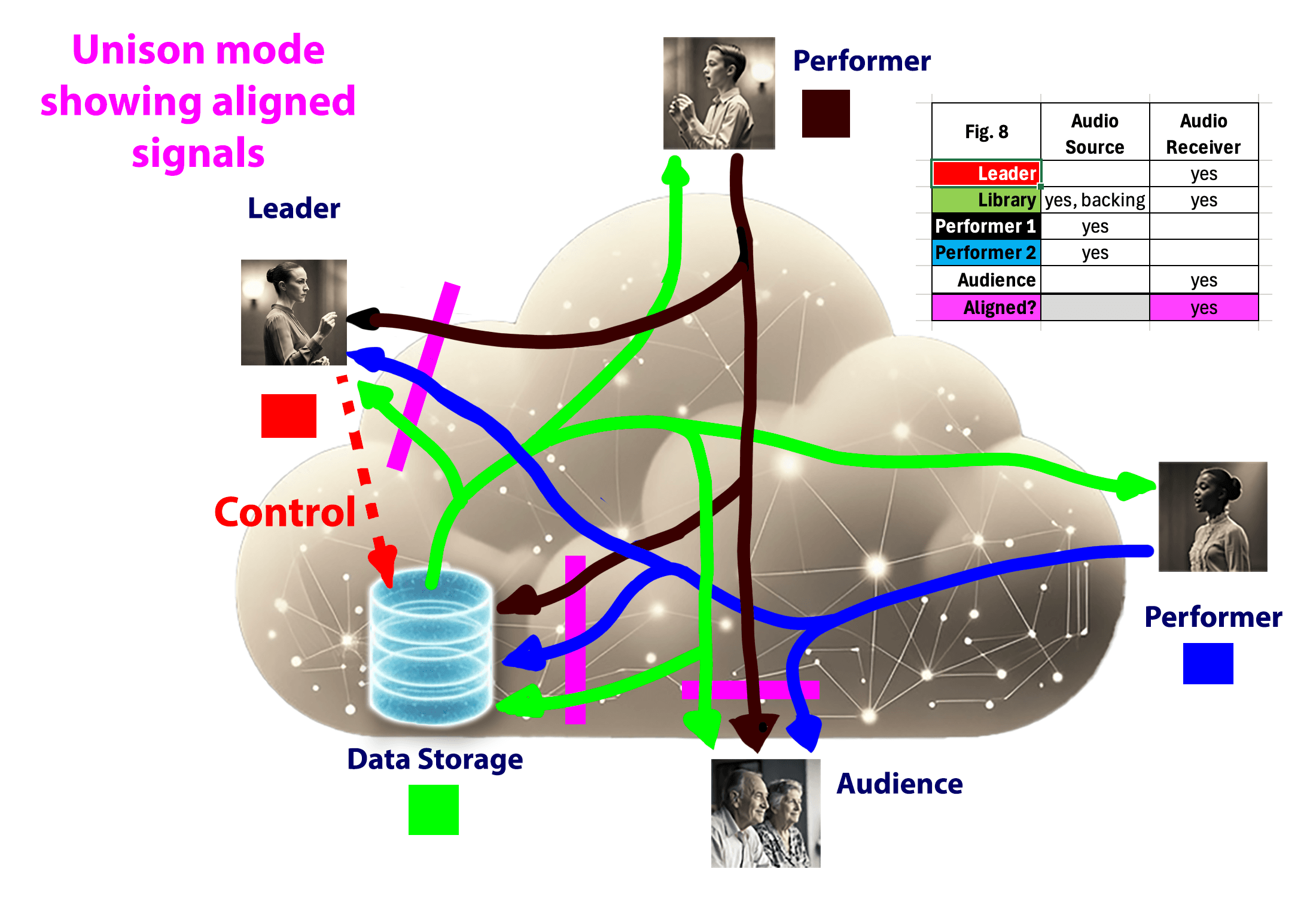
You can see in Fig. 8 several pink bars that illustrate where we use our technology to align all the signals crossing the bars. You can see that there is a lot of flexibility in how one might use this system.
Playback Mode
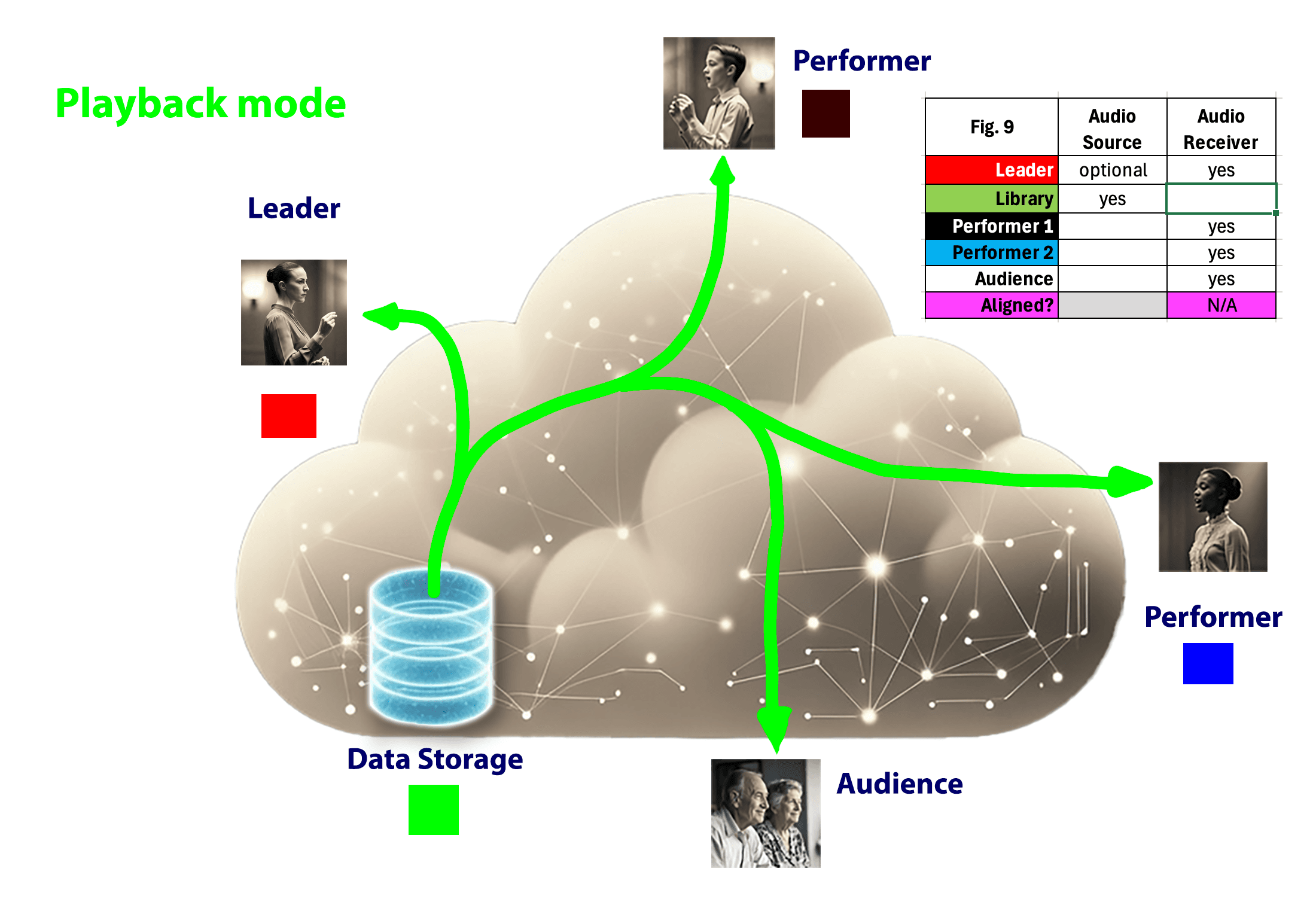
Playback is the final mode. This is a simple mode where what we have stored in the library is played for everyone online. This is shown in Fig. 9. Though not shown, the leader can join the playback, perhaps adding commentary.
Conclusion
Lyrekos has been engineered to be a highly flexible and easy-to-use system. This post has been a deep dive into its building blocks. How will you use Lyrekos? Please tell us — we’d love to hear from you.
Not yet part of our community? Join us and be among the first to put these building blocks to work.
Lance Glasser
Lance is CEO and Co-founder of Kinetic Audio Innovations. He was previously a faculty member at MIT, Director of the Electronics Technology Office at DARPA, and CTO at KLA. He also makes sculpture, which has nothing to do with audio but explains the hundreds of pounds of bronze in his house.
Ready to Try Lyrekos?
Join our community and be among the first to put these building blocks to work.
Join our CommunityTry it